Snap nodes together on a canvas, wire in the client's brand strategy and colors once, and run the same pipeline for every campaign. Start from a guided workflow or a one-click app; the canvas is the same underneath.
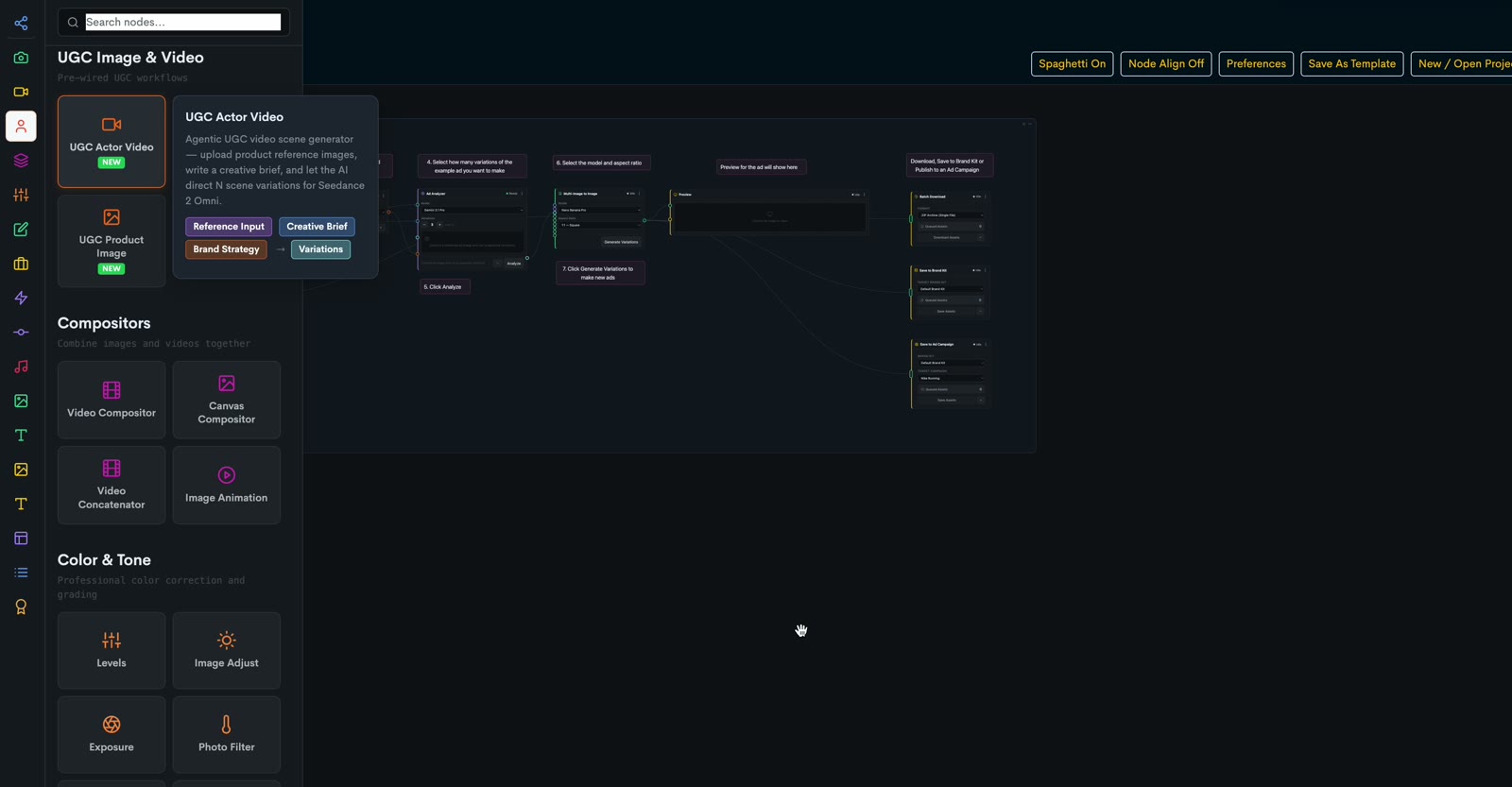
A real screen capture, from the dashboard in: the Workflow Canvas card, then the Ad Analyzer guided workflow opening with a numbered label on every node, the node sidebar sliding out, and the orchestrator's style menu dropping down. Silent, forty seconds, on a loop. Then walk through how a run happens.
The whole walk · seven stops
From the start page to a saved pipeline that runs every campaign
Here's the walk, in the order you'll do it.
1. Open Workflow Canvas
sidebar → Create → Workflow Canvas; the start page
2. Pick a guided workflow
a numbered label on every node
3. Wire the brand in
prompt, example ad, brand strategy
4. Analyze
the orchestrator writes the directions
5. Run
the model node renders; the ads land
6. Save it, publish it, keep the pipeline
campaign, kit, download, template
7. Same project, two faces
the app step panel; the Architect
Your client wants six ad concepts by Friday, and next month they'll want six more.
Workflow Canvas is in the sidebar under Create. You build the pipeline once. Here's exactly where to click.
Step 1 · Open Workflow Canvas
It's in the sidebar, under Create
Open Create in the left sidebar and click Workflow Canvas. You land on a start page, not an empty canvas: your projects, your templates, and a library of guided workflows and one-click apps. The client's brand kit is chosen inside the workflow.
1Sidebar → Create
the Create section: Creative Studio, Sound Studio, then the canvases
2Workflow Canvas
third row — or the Workflow Canvas card on the dashboard; the start page opens
3Use This Workflow →
on a guided card — or Open This App →, or Blank Canvas
The start page
Continue Working
Open A Project
Pick up where you left off.
Open →
Saved Pipelines
My Workflow Templates
Start from a workflow you've saved.
Open →
Load By ID
Open Shared Template
Paste a colleague's template ID.
Open →
Learn StyleForge
Getting Started
Short training videos.
Open →
Guided Workflows
Guided · 7 Steps · Ad Variations
Vary winning ads with brand strategy and AI
Use This Workflow →
Guided · 6 Steps · Winning Ad Iterations
Iterate your best published ads on live data
Use This Workflow →
Guided · Hook Line Ads
Typography-driven ads with AI-written hooks
Use This Workflow →
Guided · Character Maker
Consistent character sheets from one image
Use This Workflow →
Quick Start Apps
APP
APP
Ad Variator
Ad variations
Open This App →
APP
APP
Winning Ad
Amplify a winner
Open This App →
APP
APP
UGC Actor Video
UGC actor videos
Open This App →
APP
APP
Cinematic Video
Storyboard → film
Open This App →
Also on the page: Image Pipelines (8 Images · LLM-Directed, 4 Images · Model Benchmark…), Video Pipelines, Ad Campaign Pipelines (Google PMax · All Formats, Meta Andromeda · Feed + Stories, TikTok Ads · Vertical Video), the Shopify and Klaviyo apps and workflows, and Blank Canvas.
The sidebar · Create
Create
Creative Studio
Sound Studio
Workflow Canvasclick here
Canvas
Video Canvas
What's different here
A pipeline, not a form
nodes on a canvas, wired by type; build it once, run it every time.
Guided means labelled
a guided workflow is a real graph with a numbered step on every node — nothing hidden.
Two faces, one project
any app opens as a step panel or as the canvas underneath; switch any time.
First, you pick a guided workflow, and every node comes with a numbered label.
The whole pipeline is already wired. The labels tell you what to do at each node, in order.
Step 2 · Pick a guided workflow
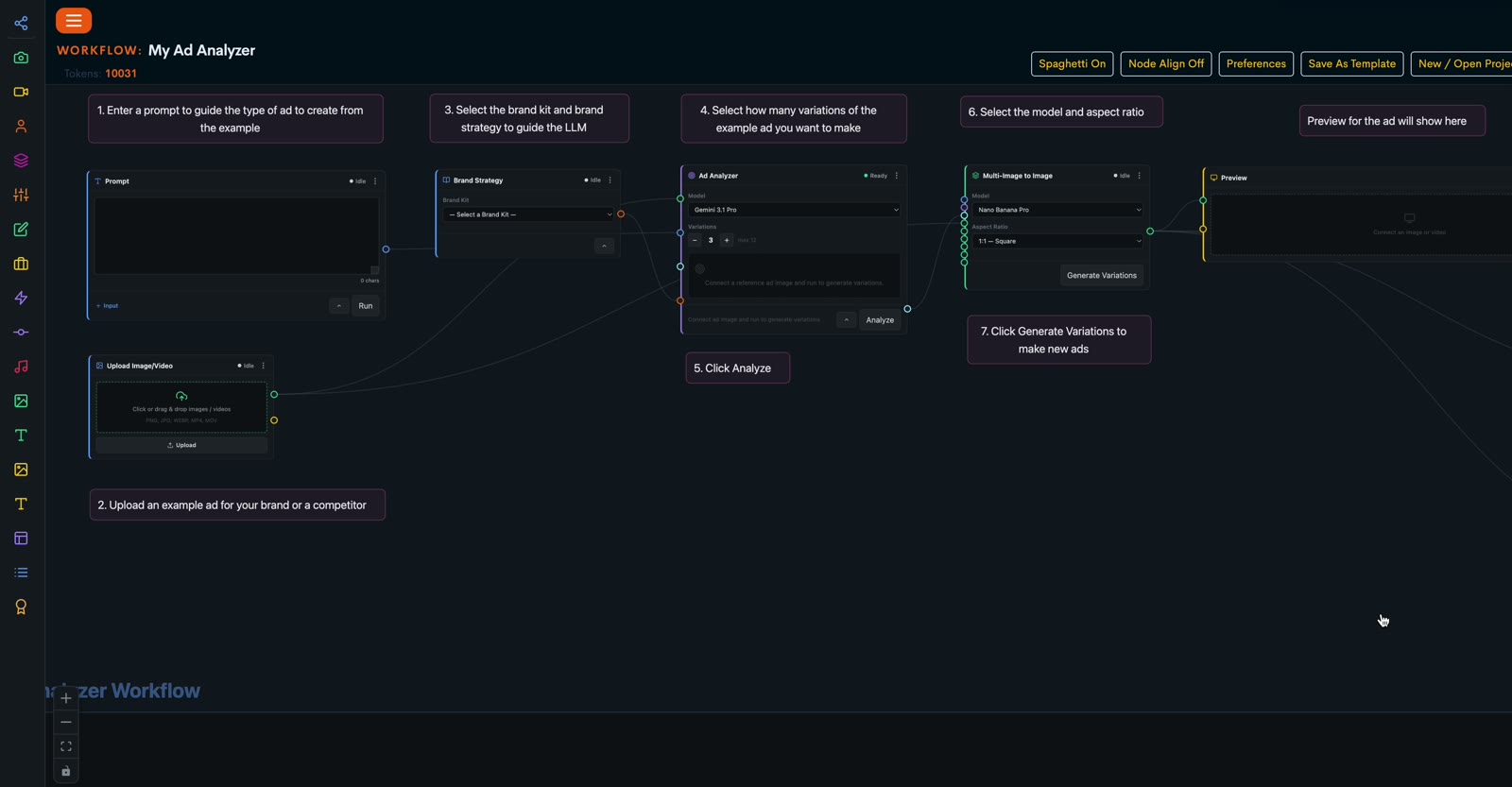
Click Use This Workflow and the canvas opens with the whole pipeline wired and a numbered label on every node
Click Use This Workflow and the whole pipeline opens already wired, with a numbered label beside each step telling you what to do there. The canvas below is a real one: seven labels from the prompt to Generate Variations.
The seven labels, as they read on the canvas
1Enter a prompt to guide the type of ad to create from the example
2Upload an example ad for your brand or a competitor
3Select the brand kit and brand strategy to guide the LLM
4Select how many variations of the example ad you want to make
5Click Analyze
6Select the model and aspect ratio
7Click Generate Variations to make new ads
The canvas header
Spaghetti OnNode Align OffPreferencesSave As TemplateNew / Open Project
WORKFLOW: My Ad Analyzer
the project name, top left — rename it any time
A node is a card
icon, title, a status dot (Idle · Ready · Generating · Complete), a menu: Rename · Duplicate · Delete
Ports are coloured by type
a wire only connects to a port of the same type — the canvas won't let a wrong one land
Then you feed it the prompt, the example ad, and the client's brand strategy.
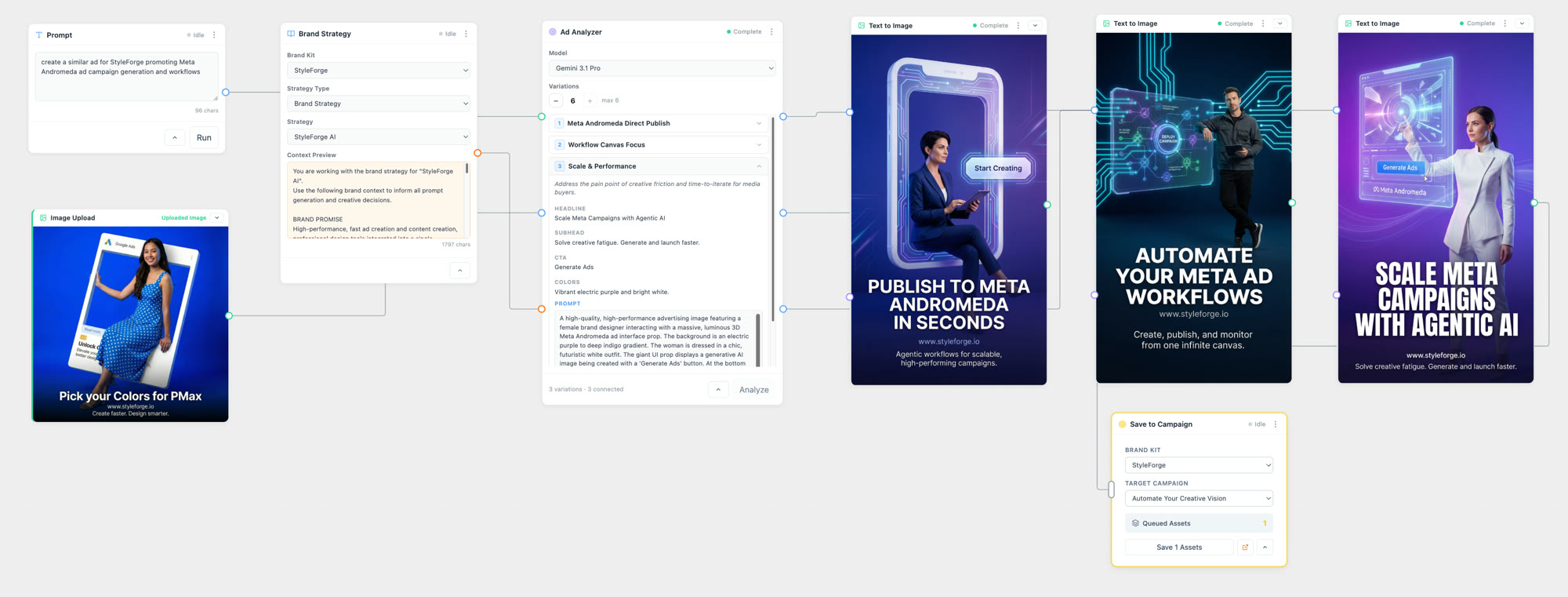
Three input nodes, wired by type into the orchestrator. The brand context comes straight from the kit.
Step 3 · Wire the brand in
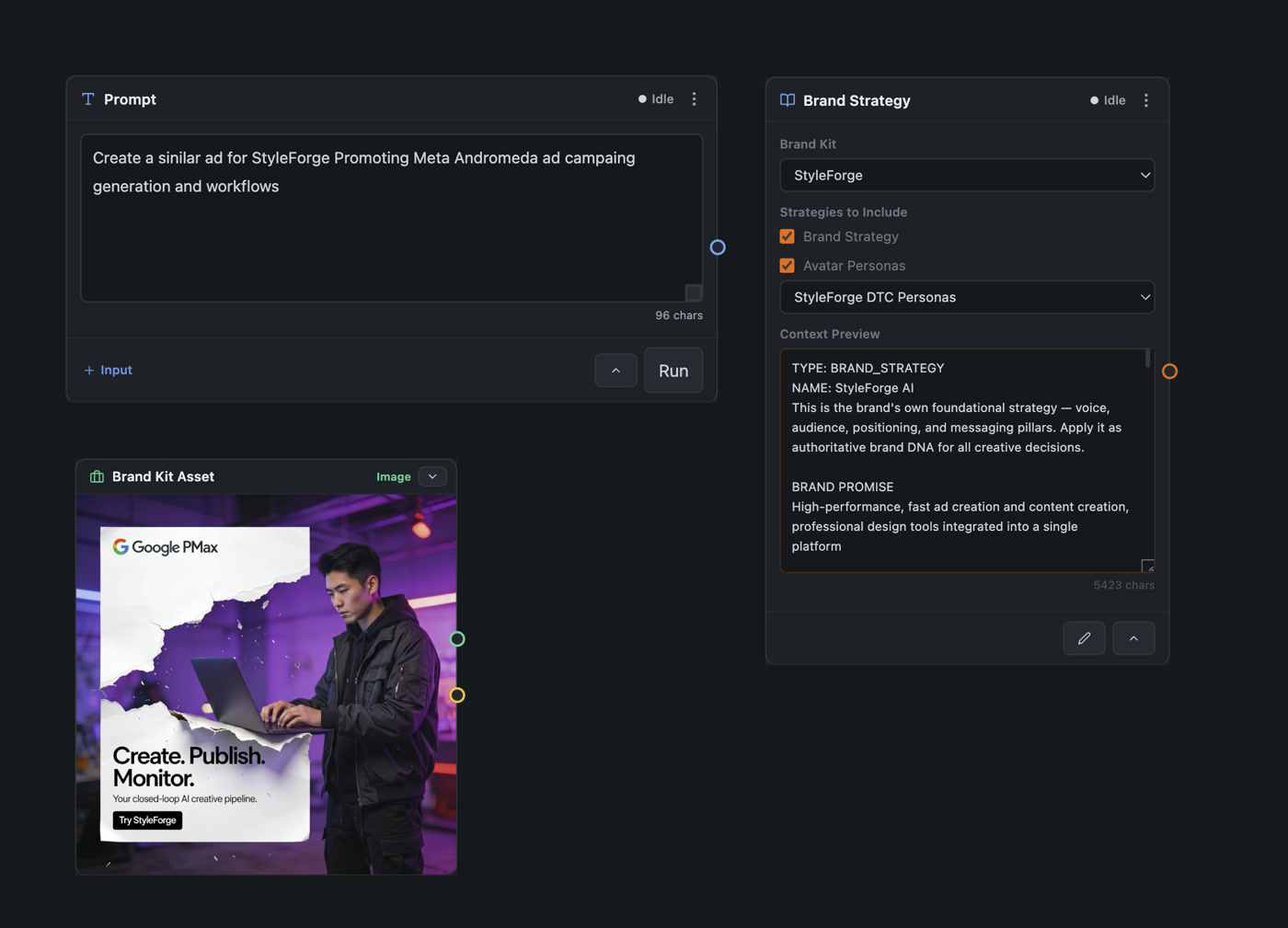
Three input nodes feed the orchestrator: the prompt, the example ad from the kit, and the client's brand strategy
Three inputs feed the pipeline: your prompt in plain words, an example ad from the client's kit, and the client's brand strategy. Pick the client, tick what to include, and the brand context flows in.
The three input nodes · real cards
wired into the orchestrator
● Prompt · text out● Brand Kit Asset · image out● Brand Strategy · brand context out
Ports, by colour
textprompt text
structuredthe orchestrator's output
imageimage assets
videovideo assets
systembrand context
audiovoice and music
A wire only lands on a port of its own colour. Drag from a port into empty canvas and the picker offers only nodes that fit.
The node sidebar · Search nodes…
Agentic OrchestrationInputImage ModelsVideo ModelsUGC Image & VideoCompositorsColor & ToneEditingUtilityWorkflow ToolsAudio & MusicImage to ImageText to ImageImage to VideoText to VideoPreset PromptsPreset ListsPreset Variations
Every top image and video model sits behind one node with a model switch, so a pipeline built for one model runs on the next one by changing a dropdown. Hover a card in the sidebar and it tells you what the node does and which inputs it expects.
You set how many directions you want, and click Analyze.
The orchestrator writes each one inside the brand's language, with a headline, a subhead and a prompt.
Step 4 · Analyze
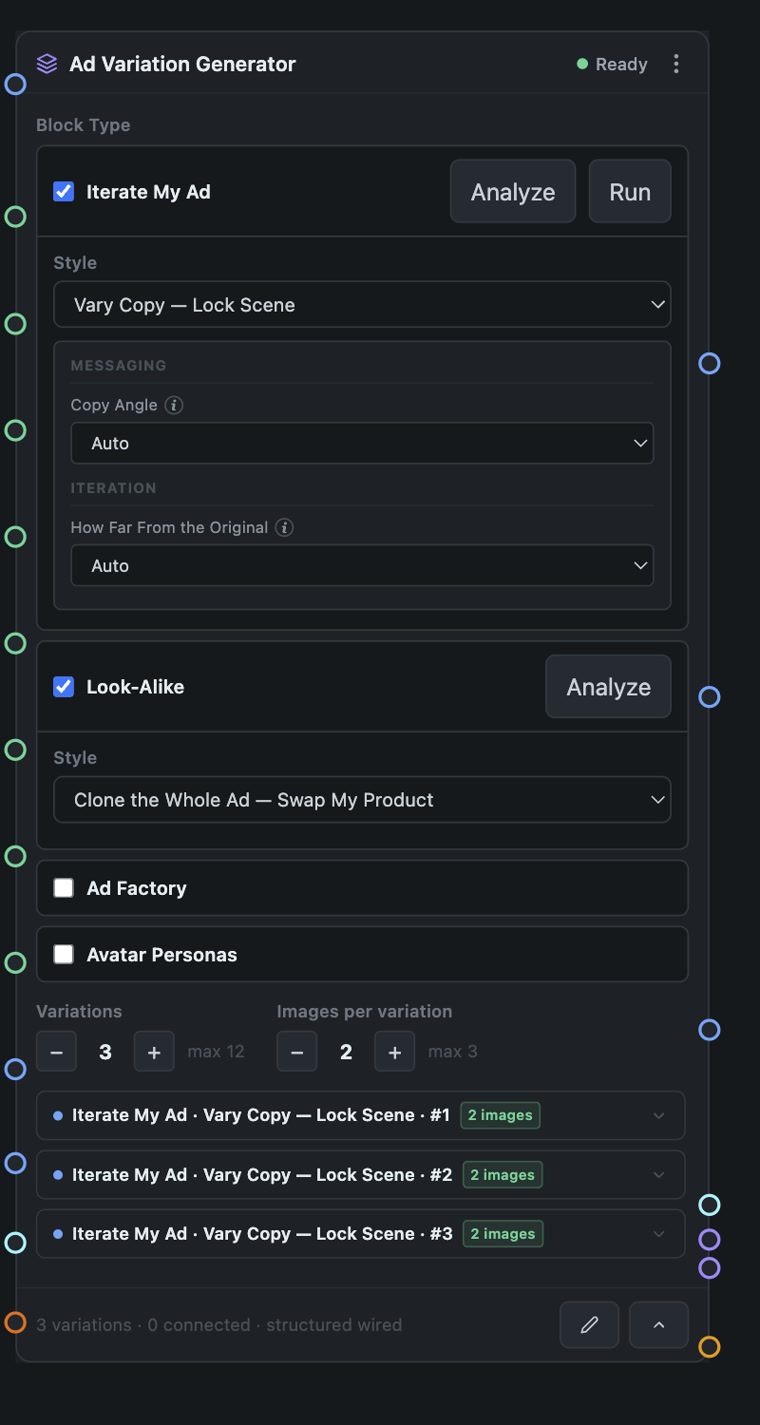
Pick a block type and a Style, set the variations and the images per variation, and click Analyze — the orchestrator writes the creative directions
Pick what kind of variations you want and how many, and click Analyze. Each variation comes back as a numbered direction, with a headline, a subhead and the prompt for the image, all in the client's language.
The Ad Variation Generator · real card
3 variations · 2 images each
N variations × M images
1Vary Copy — Lock Scene · #1
2 images of this direction
2Vary Copy — Lock Scene · #2
2 images of this direction
3Vary Copy — Lock Scene · #3
2 images of this direction
Block types · what the orchestrator is doing
Iterate My Ad
evolve a proven ad — a Style says what stays and what moves
Ad Variation GeneratorWinning AdAd Hook LinesCharacter MakerAngle MakerCinematic Scene DirectorUGC Actor VideoKlaviyo Universal ContentPOD Content GeneratorShopify Product & Theme AnalyzerYouTube ThumbnailsWorkflow Architect
Every direction is a different idea rendered inside the brand's visual language, not a random spread. Variations up to twelve, images per variation up to three. Author the directions yourself with a Variations node, or let the orchestrator propose them; either way the count you set is the count you get.
Then you pick the model and click Generate Variations, and the ads land on the nodes.
One finished ad per direction, a different idea each, the same brand throughout.
Step 5 · Run
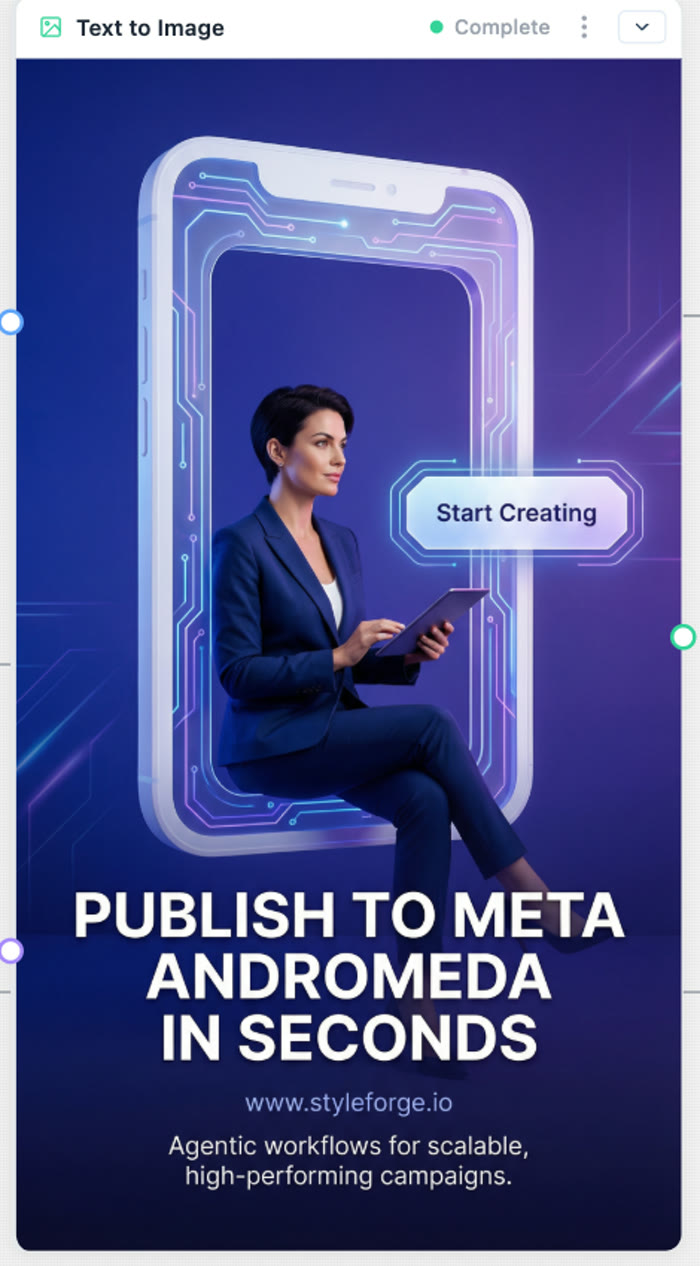
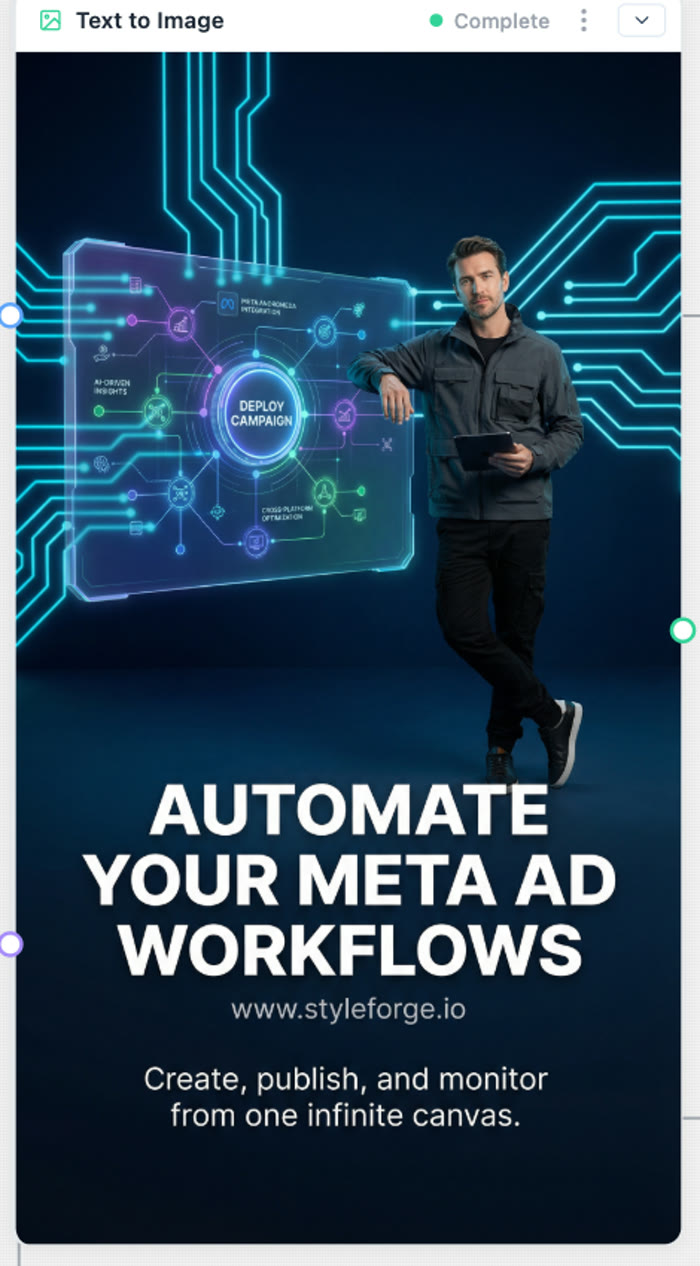
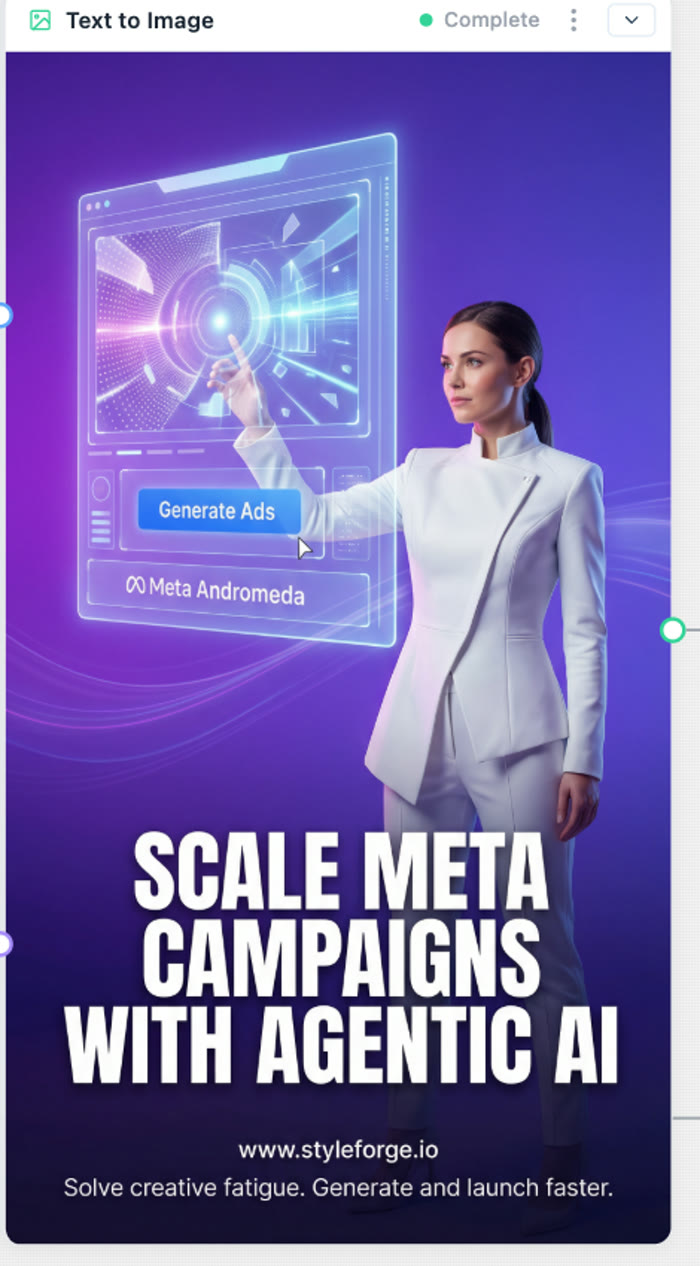
Pick the model and the aspect ratio, click Generate Variations, and each direction renders on its own node — the three ads below are the real result
Pick the image model and the aspect ratio, click Generate Variations, and each direction renders as a finished ad. The three ads below are the real result of the run above: three ideas, one brand.
Completedirection 1
Completedirection 2
Completedirection 3
Run one node, or Run All·the model is a dropdown on the node — switch it and run again·a Preview node shows the result large before you save
You send the keepers to the campaign, and save the pipeline for next month.
Save to Ad Campaign, Save to Brand Kit, Batch Download. Save As Template keeps the whole graph.
Step 6 · Save it, publish it, keep the pipeline
A save node at the end of the wire sends the keepers where they need to go — and the workflow itself saves as a template you run next month
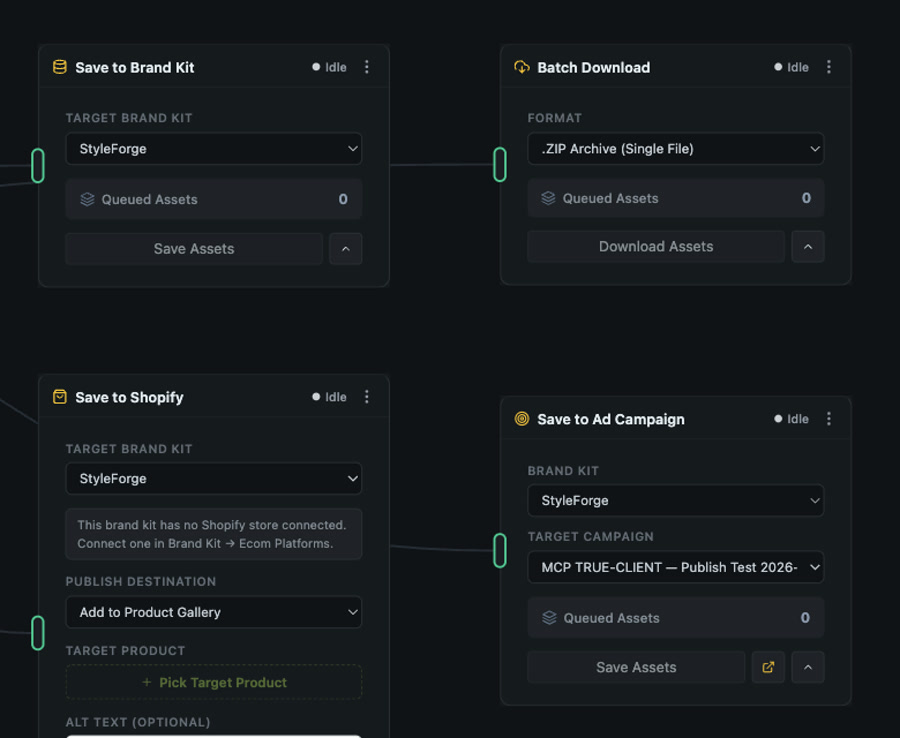
The last steps send the keepers where they go: to the client's ad campaign, to their brand kit, to a zip, or straight to their store or email account. Then Save As Template keeps the whole pipeline, so next month you run it again with a new brief.
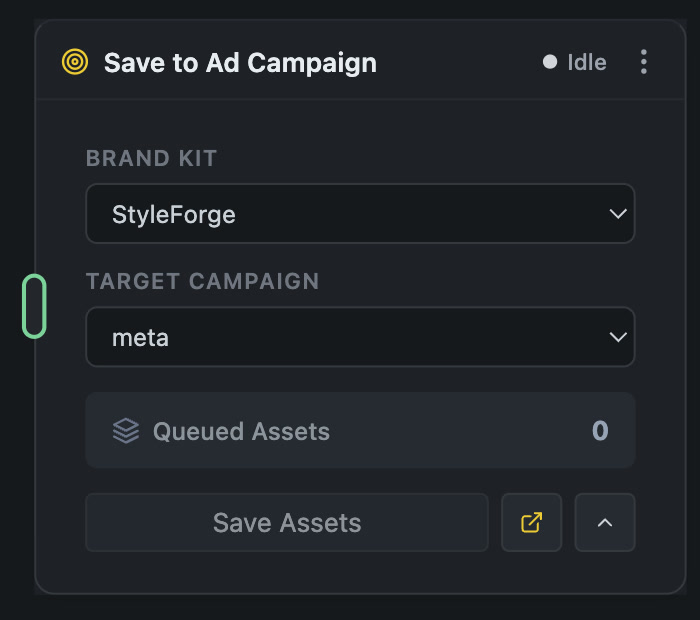
Save to Ad Campaign · the real node
Brand Kit, Target Campaign, the queue count, and Save Assets. The ads land on the campaign in Ads & Commerce, ready for placements and publishing.
The destination nodes · the end of a real pipeline
Save to Ad Campaign
queued onto a client campaign
Save to Brand Kit
kit assets — Saved Successfully
Batch Download
.ZIP Archive or separate files
Save to Shopify
straight to the product or theme
Save to Klaviyo
email content and campaigns
Preview
see it large before you send it
Keep the pipeline
Save WorkflowSave As TemplateOpen A ProjectMy Workflow TemplatesOpen Shared Template
Next month's campaign is the same template with a new prompt and a new example ad. The brand strategy, the model choices and the destinations are already wired.
Where the keepers show up
Ads & Commerce → Ad Campaigns
queued on the target campaign, ready for placements and publishing
The client's brand kit
under Brand Assets, analyzed and searchable, reusable on the next reel or pipeline
The start page
the project under Open A Project; the template under My Workflow Templates
And when the account manager wants it without the wires, the same project opens as an app.
A numbered step panel over the same nodes. Or describe a pipeline and the Architect wires it.
Step 7 · Same project, two faces
Open This App and the same pipeline shows up as a numbered step panel — or describe a pipeline in a sentence and the Workflow Architect wires it
Open This App and the same pipeline shows up as a simple numbered panel, for the account manager who doesn't want the wires. One click switches back to the canvas. Or describe a pipeline in a sentence and the Workflow Architect builds it for you.
Ad Variator · Open This App →
← Switch to Canvas ModePreview & Edit
1Creative Brief
2Brand Strategy
3Brand Colors
4Products (optional)
5Generator
6Variations Per Family
Generate
ANALYZE→GENERATE→READY
Save to Brand KitPublish
Workflow Architect · a sentence in, a wired graph out
build a UGC avatar video pipeline with greenscreen compositing, in our brand
● Brand Strategy● Creative Brief● UGC Actor Video● Video Compositor● Save to Brand Kit
Not a template picker. The Architect places the nodes, wires the ports by type, and leaves you a pipeline you can run, edit, and save as your own template.
Three ways onto the canvas
A guided workflow
the graph pre-wired, a numbered label on every node — start here
An app
the same graph behind a step panel; Switch to Canvas Mode any time
Blank canvas + the Architect
describe the pipeline, or drag nodes from the sidebar and wire them yourself
Or you say the whole thing to Claude, and it runs the same pipeline for you.
Seventeen playbooks in three families: winning ads, ad variations, UGC.
Or · Say it to Claude
Tell Claude the brief and the count — it runs the same orchestrators, shows you the spread, and evolves the one you like
Tell Claude the brief and how many you want. It wires in the client's brand, runs the pipeline, shows you the spread, and evolves the one you like.
“Make 6 on-brand ad variations for our new trail runner — vary the hook and the scene. Then save the two best to the spring campaign.”
runs it
the brand wired in → the orchestrator's directions → the takes rendered → your notes by number → the keepers saved to the kit or the campaign
Winning ad
Winning ad amplify
Winning ad audiences
Winning ad fatigue
Winning ad hooks
Winning ad offers
Ad variation
Ad variation iterate
Ad variation personas
Ad variation look-alike
Ad variation factory
Ad variation formats
Ad variation shot list
UGC
UGC actor selfie
UGC actor unboxing
UGC actor before & after
UGC actor faces
UGC product reel
UGC scene director
Good to know
The canvas is not scoped to one kit in the sidebar. You pick the client's brand kit inside the Brand Strategy, Brand Colors and save nodes, so one pipeline can serve several clients.
A guided workflow is a real graph. Every node stays editable, and the labels are notes you can move or delete.
Analyze is a planning step and Run is a rendering step. Each fires its own node; Run All fires the whole pipeline in order.
Apps exist for the pipelines listed on the start page. Any project can flip between the app panel and the canvas without duplicating anything.
Over a hundred and fifty node types across the sidebar categories, with every top image and video model behind a switchable node.
The walk loops — next month's campaign is this month's template with a new prompt. The brand, the models and the destinations are already wired.