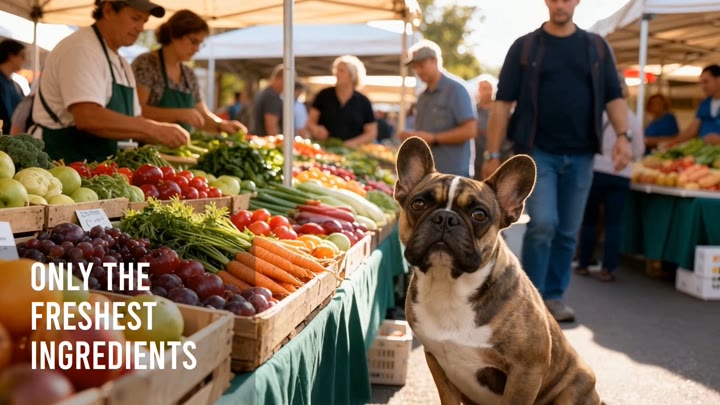
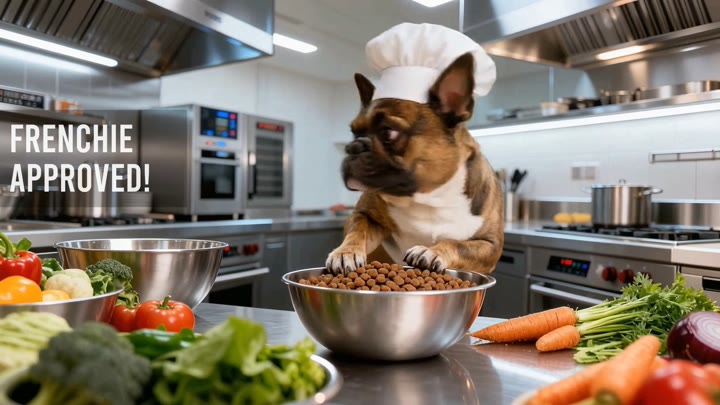
Put your clips on a reel and get back a finished, editable video.
Order the client's clips and stills, pick the transitions, add a brand graphic, music and narration, and Assemble hands back a captioned, branded cut you can still edit. Or say what you want in plain words and the Director cuts it for you.
Made in Video Editor Studio from four clips on a reel: the transitions, the brand lockup, the supers and the music, assembled on one timeline. Tap the pill for sound — then walk through how it was made.
A finished cut from the studio
Four clips on a reel, the lockup, the supers, generated music — one timeline, no export chain. Tap the pill for sound.
The whole walk · seven stops
From a folder of clips to a captioned, branded cut you can still edit
Here's the walk, in the order you'll do it.
1. Open Video Editor Studio
sidebar → Video → Video Editor Studio
2. Build the reel
clips and stills in order; a transition between each
3. Add a motion graphic
authored in the brand, staged on a scene
4. Add music and narration
two lines, sized to the reel
5. Assemble
captions, brand, render; the finished cut plays
6. Or direct with Claude
plain words; the Director cuts it
7. Keep it, save it, open it
MP4, the kit, the editor
Your client sent a folder of clips and needs a branded social cut by Friday.
Here's where to cut it.
Step 1 · Open Video Editor Studio
It's in the sidebar, under Video
Pick the client you're working on. Then open Video in the left sidebar and click Video Editor Studio. It uses that client's clips, logo, colours and fonts. The page is four numbered sections, top to bottom: the reel, the graphic, the sound, and Assemble.
1Pick the client's brand kit
on the dashboard — the studio is kit-scoped
2Sidebar → Video
the Video section: Brand Video & Audio, then the studios
3Video Editor Studio
the last row — or the hub card Create · Video Editor Studio
The studio · four sections, a preview on top
Preview — the selected clip plays here
1The Reel
Drag to reorder. Click the chip between clips to pick the transition — cut, dissolve, slide, wipe, flip, clock, or iris. Images play as Ken Burns scenes; toggle CC on talking clips to caption them.
Brand kit mediaUpload imageUpload videouploads are analyzed once saved — transcript, scenes, safe zones
2Add Motion Graphics
3Add Music & Narration
4Assemble
The sidebar · Video
Video
Brand Video & Audio
Video Director
UGC Ad Studio
Motion Ads
Motion Graphics Studio
Video Editor Studioclick here
What's different here
The reel is the edit
you order real clips and stills; nothing is generated unless you ask for a graphic or a score.
Editable, not locked
Assemble hands back a project you can open in the StyleForge Editor, plus the MP4.
The Director reads the footage
type what you want and Claude cuts it from each clip's transcript and safe zones — your picks never overridden.
First, you put the clips and stills on the reel, in order.
A transition between each, a camera move on the still, captions on the clips where someone talks.
Step 2 · Build the reel
Add the client's clips and stills from the kit, drag them into order, and click the chip between any two to pick the transition
Pull clips and stills from the client's kit, or upload new ones. Drag them into order. Click the chip between any two to pick the transition. A still gets a slow camera move; a clip where someone talks gets captions with one toggle.
The Reel · four scenes · ~0:20
Brand kit mediaUpload video
video
garden.mp4
0:06
Dissolve
CutHard cut, no blend
DissolveCrossfade between scenes
SlideNext scene pushes in
WipeNext scene wipes across
FlipFlip to the next scene
ClockRadial sweep reveal
IrisCircle reveal
videoCC
market.mp4
0:05
Slide
videoCC
kitchen.mp4
0:05
Cut
image
bag-hero.jpg
Ken Burns · Zoom In · 4s
Preview this clip Auto-caption this clip at assemble Download original Remove from reel
Drag to reorder
the reel is the running order
The chip between tiles
seven transitions, one click each
CC on the talking clips
captioned at assemble, in the look you pick
The still · Ken Burns motion
bag-hero.jpg · hold 4s · a camera move turns it into a scene
what is said, and when — so captions land on speech
The scenes
where the cut points fall inside a clip
Safe zones
where faces and the product sit — text never lands on them
Then you ask for the graphic the cut needs, and stage it on a scene.
Authored in the client's brand, previewed live, placed where you say.
Step 3 · Add a motion graphic
Describe a graphic in one line, watch the brand-bound variants animate, pick one and the scene it plays over, and click Use
Describe the graphic the cut needs in one line, like a Healthy, all natural sticker in our green. Variants in the client's brand animate below. Pick one, pick the scene it plays over, and click Use.
2 · Add Motion Graphics
Describe a motion graphic — Claude authors brand-bound variants that animate live below. Iterate by describing changes, then stage the one you like onto a scene.
a “Healthy, all natural” sticker in our green — soft pop, holds
Style referenceAuthor variants
1HEALTHY, ALL NATURAL.
2HEALTHY, ALL NATURAL.
3HEALTHYALL NATURAL.
Variant number#2 ▾Which scene it plays overScene 4 ▾Placement zoneTop left ▾Visual weightMedium ▾Use
Staged onto Scene 4 · the bag
motion graphic · staged
One motion graphic per video in the studio today; add more with directions, or in the editor after. The graphic renders transparent, so it sits over the footage without a box around it — and the same take can be saved to the kit for the next cut.
You write one line for the music, and the script if there's a voice.
Both generate at assemble, sized to the reel, the music ducking under the words.
Step 4 · Add music and narration
A one-line music brief and, if you want a voice, the script — both are generated at assemble, sized to the reel, and the music ducks under the narration
Two fields. One line for the music, like warm acoustic, sunny, ends with the video. And the script, if you want a voice. Both are made when you assemble, sized to the reel, and the music dips under the narration on its own.
3 · Add Music & Narration
music + narration staged ✓
Optional. Generated at assemble time and sized to your reel (~0:20). Music ducks under narration automatically.
Music brief
warm acoustic, sunny and light, ends with the video
Narration script (optional) — spoken over the video
Grown in real gardens, picked at the market, made in a real kitchen. Healthy, all natural — and Frenchie approved.
Both optional · three ways the cut can sound
Leave both empty
the clips' own sound, nothing added
Music only
a bed to the brief, sized and faded
Music + narration
the voice over the bed, ducked automatically
Sized to the reel · ducked under the voice
VO
Music
0:00the voice comes in · music dips0:20 · fade
A bed from a brief
generated to the reel's length, fades with the picture
A natural voice from a script
spoken over the cut; nothing to record
Ducking, automatically
the music drops under the words and comes back after
Then you name it, pick the aspect and the caption look, and assemble.
A few minutes later, the finished cut plays, captioned and branded.
Step 5 · Assemble
Name it, pick the aspect and the caption look, click Assemble video — and a few minutes later the finished, branded cut is playing
Name it, pick the aspect, pick a caption look from twenty-two swatches, and click Assemble video. A few minutes later the finished, branded cut plays right there.
4 · Assemble
Spring garden · social cutAspect ratio16:9 Wide ▾Caption lookNeon Yellow ▾Caption placementBottom ▾ Assemble video
Caption look · 22 presets, shown as live swatches
Your caption
Classic
Your caption
Black Solid
Your caption
White Transparent
Your caption
Bold Blue
Your caption
Neon Yellow
Your caption
Pink Highlight
Your caption
Emerald Solid
Your caption
White + Black
Fourteen more: Black Transparent · Vibrant Red · Purple Burst · Glass Blue · Blue Highlight · Purple Highlight · Electric Cyan · Hot Magenta · Lime Green · Black + White · Orange Solid · Indigo Solid · Sunset Orange · Deep Purple. No Captions by default; picking a look turns captions on for the talking clips.
Your video
Your video is ready
A real finished cut from the studio: the scenes in order, the lockup, the supers, the music. Muted here.
In production · what the studio does
Stages the project
your reel, in your order, as an editable timeline
Captions the talking clips
speech transcribed, word-timed, in the look you picked
Waits for the graphic
the staged motion graphic renders first, then composites
Generates the sound
the bed and the voice, sized to the reel, ducked
Applies the brand
logo, colors, fonts — placement respects each scene's clear zones
Renders
a few minutes for a ~30s cut, with live progress
Or you type what you want, and the Director cuts it for you.
It reads every clip's transcript and safe zones and tells you what it did.
Step 6 · Or direct with Claude
Type what you want in plain words above the button — it becomes Direct & Assemble, and the Director cuts it from every clip's transcript and safe zones
Or type what you want above the button, like caption only where she speaks, logo small in the corner, end on the bag. The Director reads every clip before it places anything, cuts it that way, and tells you what it did.
Direct with Claude (optional)
open on the garden, then the market and the kitchen — caption only where people speak, keep the supers big, logo small top-left for the whole video, end on the bag with the sticker
empty box = Assemble video · words in the box = the Director Direct & Assemble
Director: Ordered garden → market → kitchen → bag with a dissolve into the market and a slide into the kitchen. Captioned the market clip only — it's the one with speech. Logo watermark top-left, clear of the dog in every scene. Sticker staged on the bag, held to the end. Music brief matched to the pace.
What the Director can do on its own
Reorder the scenes
to the story you described
Caption only the speakers
it knows which clips have speech
Place overlays in clear bands
logo and graphic off the faces and the product
Write a matching music brief
to the pace and the mood of the cut
What the Director sees · safe zones
occupied · the dogclear · text goes here
Every clip on the reel was analyzed when it was saved: the transcript, the scene cuts, and where the faces and the product sit. The Director places captions and overlays in the clear bands, and warns you if something would collide — warnings inform, they never block.
When it's right, you download it, save it to the kit, or open it in the editor.
Every scene, caption, overlay and track still editable. The project stays on Brand Videos.
Step 7 · Keep it, save it, open it
Download the MP4, save the cut to the client's kit, or open it in the StyleForge Editor — every scene, caption, overlay and track still editable
Three buttons under the finished video. Download the MP4. Save to Brand Kit to keep it as a client asset. Or Open in StyleForge Editor to keep editing on a full timeline, every scene, caption, overlay and track on its own layer.
Under the video
Download Save to Brand KitOpen in StyleForge Editor
Saved to your brand kit — analysis runs in the background.
The MP4
9:16, 1:1 or 16:9 — the aspect you picked
A kit asset
the finished video, analyzed and searchable, reusable in the next reel
Brand Videos
the project on the client's Brand Videos page — reopen it any time
StyleForge Video Editor · the project, on tracks
editable, not locked
Scenes
Captions
Overlays
logo
sticker
Audio
Scenes
trim, reorder, swap a clip
Captions
every word, its timing, its look
Overlays
the logo and the graphic, moved or resized
Audio
the bed and the voice on their own rows
Brand Videos · the client's project library
Spring garden · social cut
today · editable project · MP4
Open
Market day · 9:16 story
last week · editable project · MP4
Open
Change your mind three ways: edit the directions and re-assemble, move things on the reel and re-assemble, or open the editor and do it by hand.
Or you say the whole thing to Claude, and it hands back the editable project.
Four playbooks, named for the job.
Or · Say it to Claude
Tell Claude which clips and what you want — it orders the reel, captions the speakers, places the brand, scores it, and hands back the editable project
Tell Claude which clips and what you want. It orders the reel, captions the speakers, places the logo, scores it, and hands back the preview, the MP4 and the editable project.
“Cut the garden, market and kitchen clips into a 16:9 social spot for the pet-food client — caption where people speak, logo small top-left, end on the bag with a Healthy, all natural sticker, warm acoustic music.”
cuts
the clips found → the reel ordered → captions on the speakers → logo and graphic in the clear zones → the score → the preview, the MP4, the editable project
Video captions
caption a clip in the brand's look, word-timed
Video reel
assemble a branded reel from the clips you name
Video brand finish
logo, colors, an outro — the brand pass on a clip
Video motion graphic
author the graphic and place it on the cut
Good to know
Built for fast social and ad video. Deep custom work happens in the StyleForge Editor after.
Music and narration generate at assemble. A cut around thirty seconds comes together in about one to three minutes, with live progress.
One motion graphic staged per video in the studio today. Add more through directions or in the editor.
Uploads need a moment of analysis after they save before the Director can see them.
Captions are per clip: toggle CC on a clip, or pick any caption look to turn them on for every talking clip. No Captions turns them all off.
The walk loops — the cut you saved is on the next reel as a clip. The kit already has the logo, the fonts and the graphics you kept.