Get connected · about a minute
Connect your AI agent
Drive StyleForge from Claude — create and run projects, generate images and video, and publish, all from a conversation. Connect once and the agent works on your own brand kits. Takes about a minute.
Your connection details
Paste these into Claude's “Add custom connector” dialog.
Remote MCP server URL
https://app.styleforge.io/api/mcp/v1OAuth Client ID (under Advanced settings)
10egf63jdgu9i87094g58aoonoStep by step
Connect Claude in 5 steps
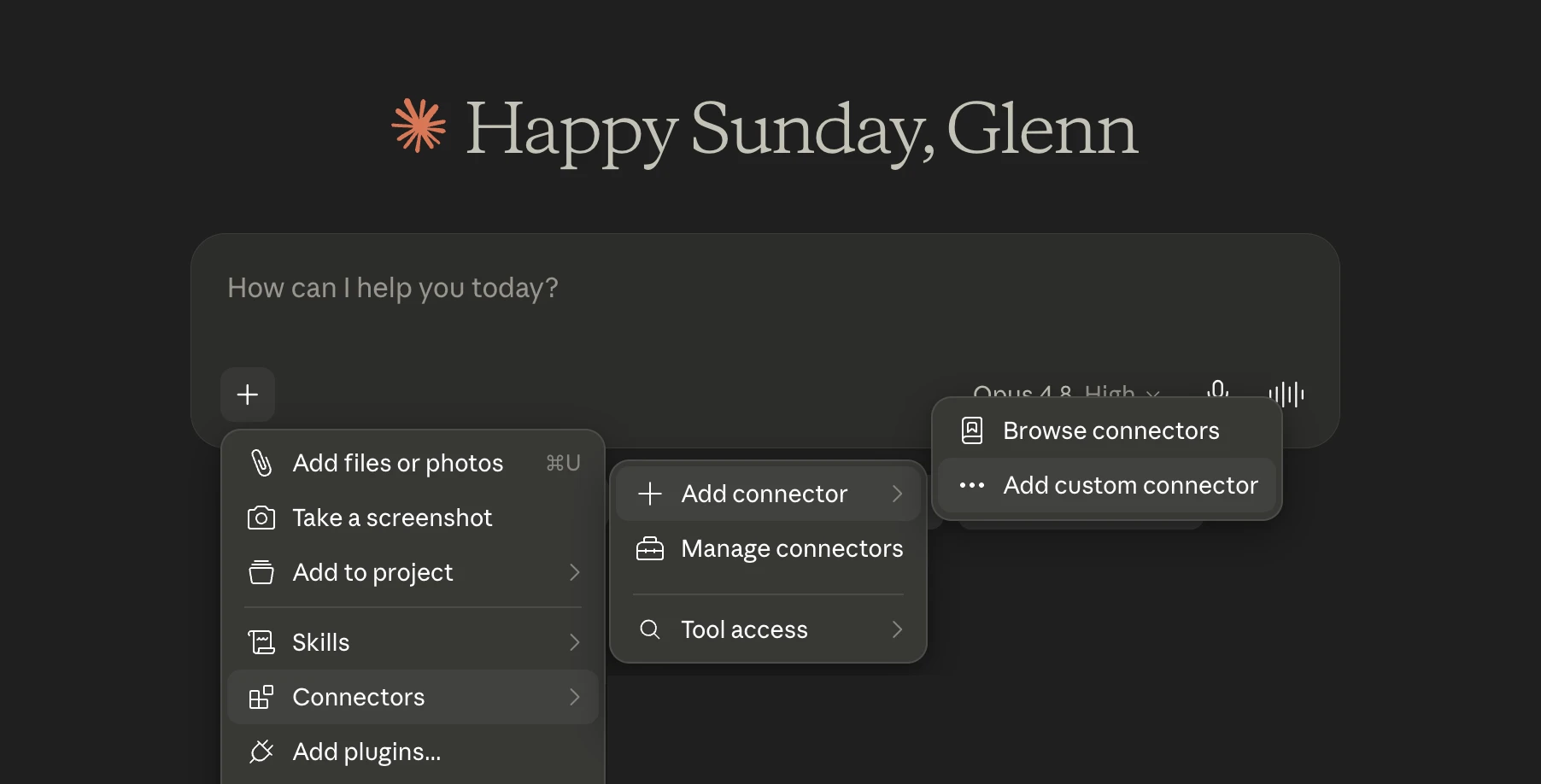
Open the custom-connector menu
In Claude, click the + in the message bar, then Connectors → Add connector → Add custom connector. (In Claude Desktop / Cowork: Settings → Connectors → Add custom connector.)
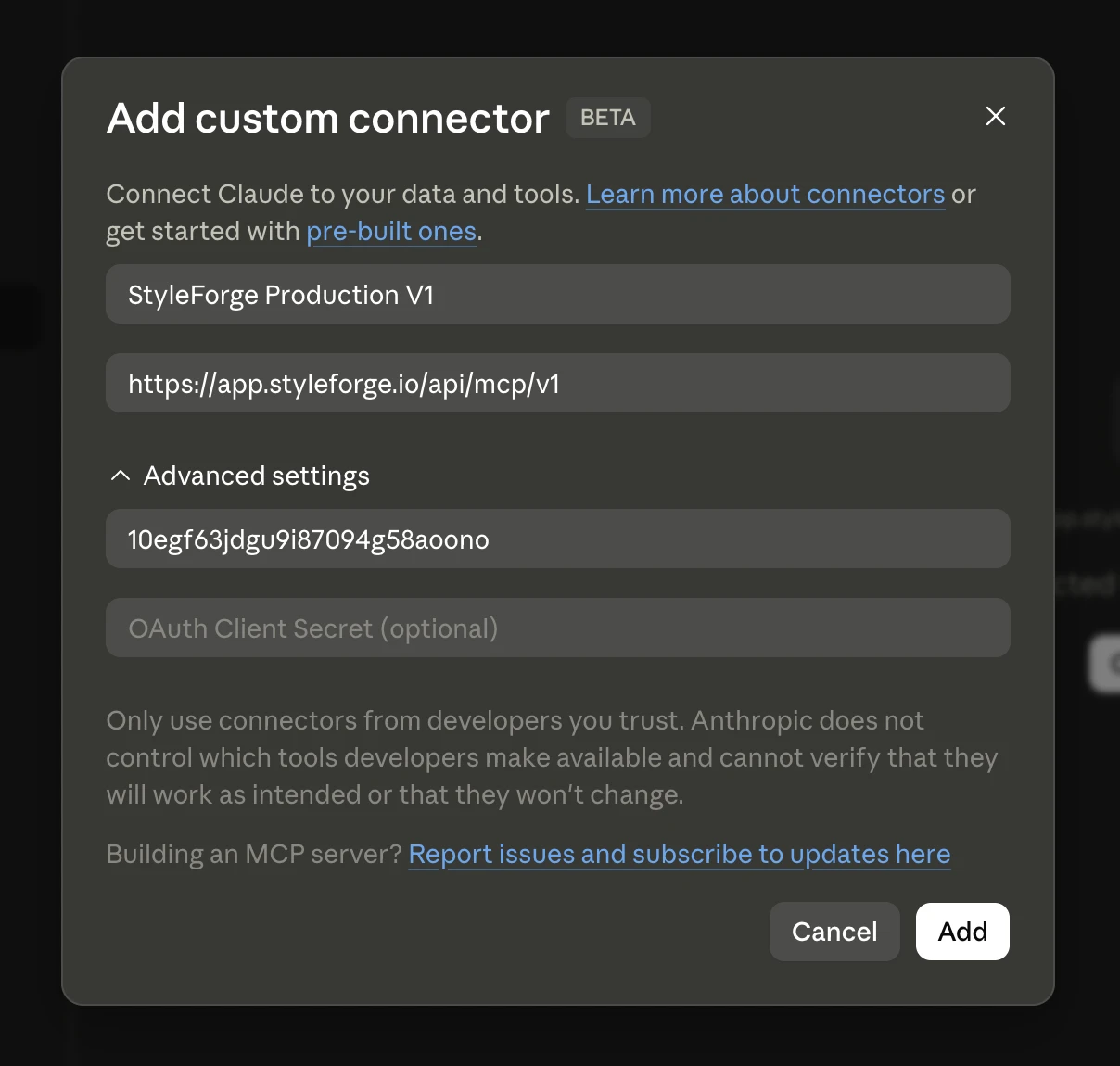
Paste the server URL and Client ID
Give it a name (e.g. “StyleForge”), paste the Remote MCP server URL, then open Advanced settings and paste the OAuth Client ID. Leave the Client Secret blank. Click Add.
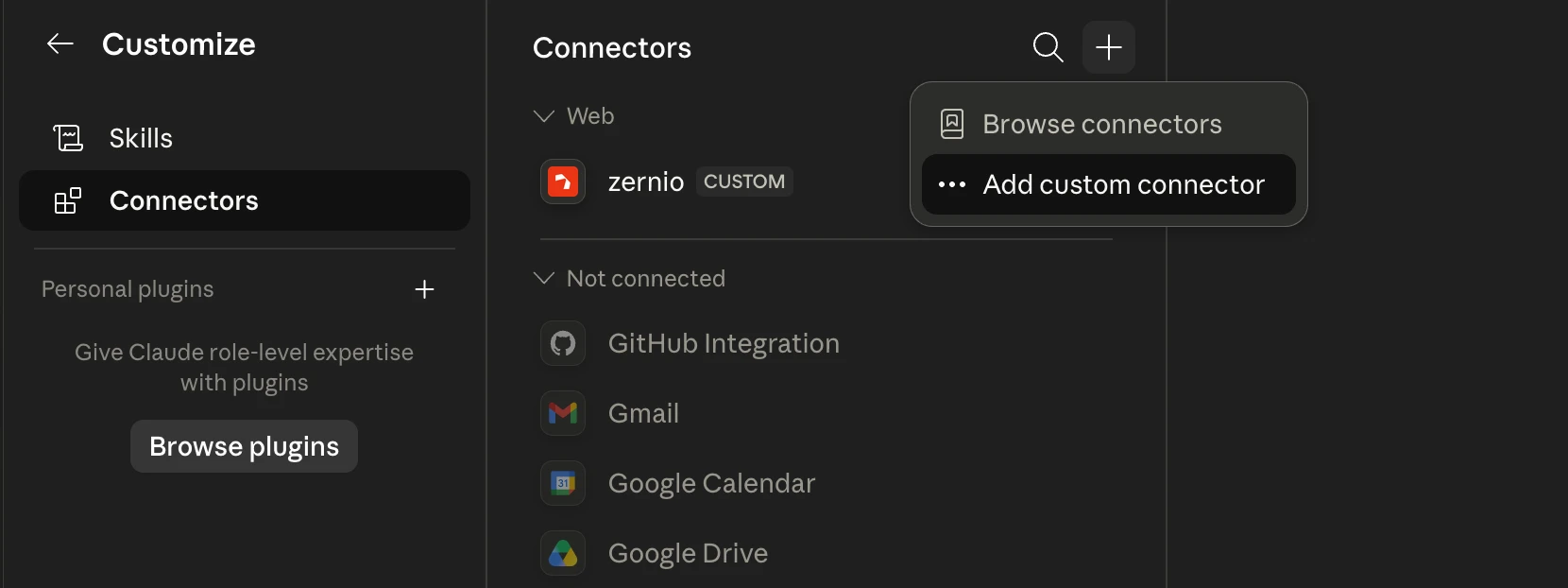
Find StyleForge in your connectors
It now appears in your connectors list, marked CUSTOM, under “Not connected.”
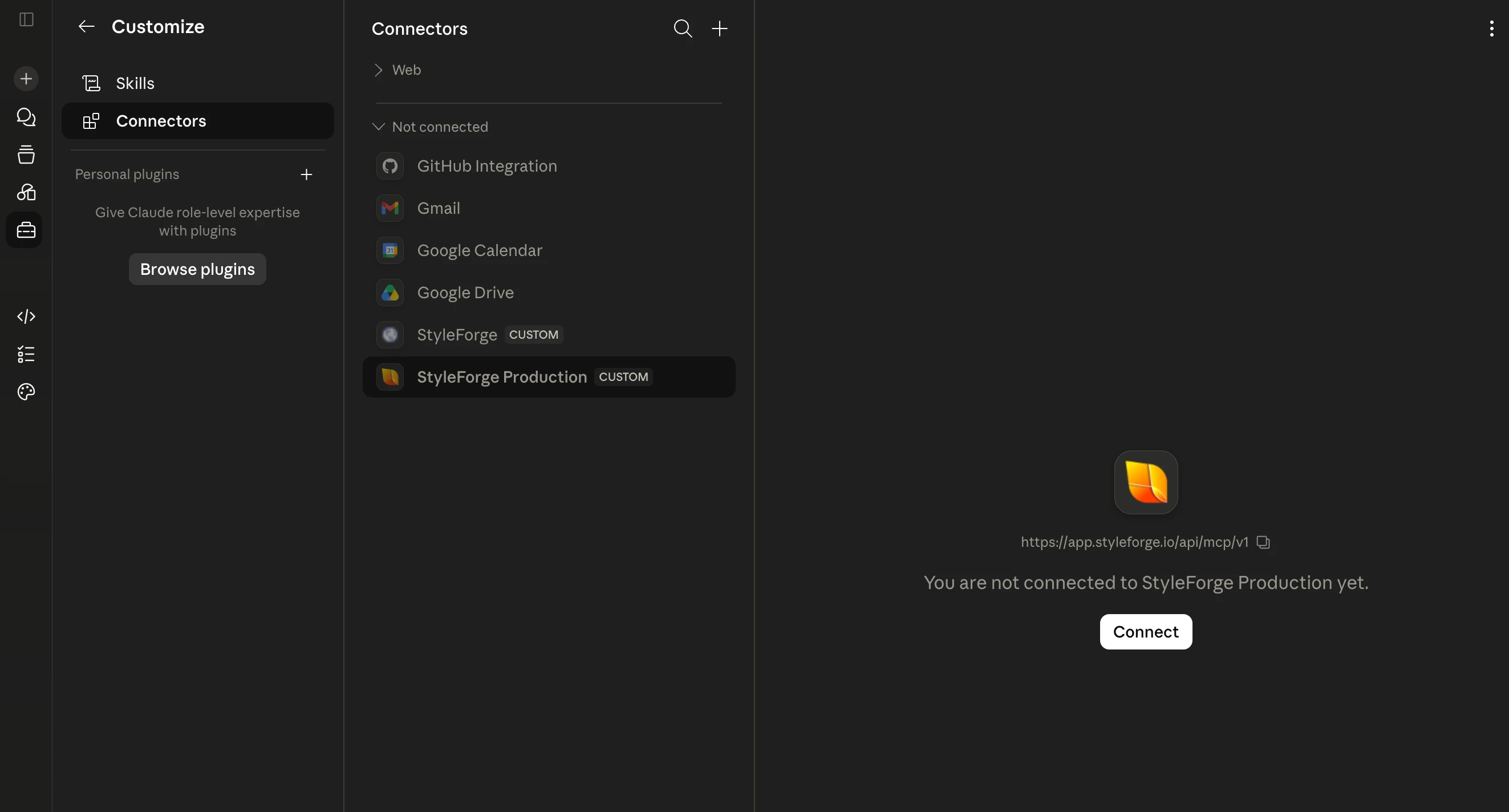
Connect and sign in
Click the Connect button and select the same login method you use for your StyleForge account. This links Claude to your StyleForge account.
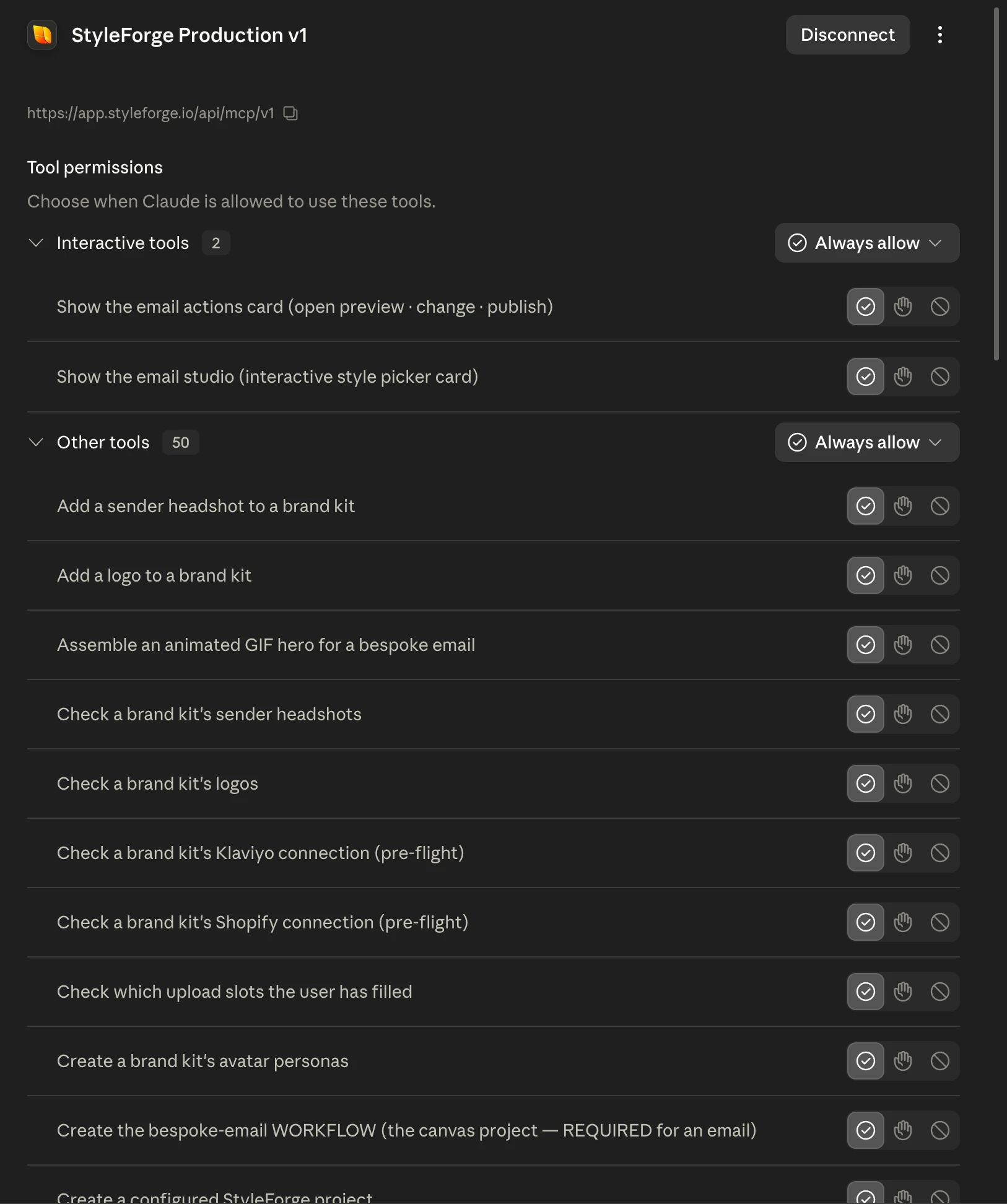
Allow the tools
Set the StyleForge tools to “Always allow” so Claude can create projects, generate images and video, and publish without prompting each time. You're connected.
StyleForge also runs in Claude Code and via a personal API key for CLI, cron, and Agent-SDK work — generate one from your account.