Video Director/Walkthrough

Walkthrough · Video Director

An AI editor that cuts your clips into an ad.

Drop in your clips, say what the ad is for, and it cuts them into a branded spot with the words, the music and a narrator. Change anything by telling it what to change.

The whole walk · seven stops

From the footage you have to the cut you'd have paid an editor for

Seven stops, in the order the studio runs them. Where it is, how the footage comes in, how you trim, what the director writes and scores, how the cut gets made, how you change it by talking, and where the keeper goes.

1. Open Video Director
sidebar → Video → Video Director
2. Drop the footage
your clips, understood on the way in
3. Trim to the moment
the trim is the edit
4. The words and the sound
type, music bed, narrator
5. Create the cut
one line, one click, live preview
6. Iterate by talking
re-cut, reorder, swap — instantly
7. Render and keep
MP4, a project on Brand Videos

Your client has a folder of footage from the shoot, and needs a cut for Friday.

Video Director is in the sidebar under Video, once you've picked the client's kit. Here's exactly where to click.

Step 1 · Open Video Director

It's in the sidebar, under Video

Pick the client you're working on. Then open Video in the left sidebar and click Video Director. It cuts from that client's footage and uses their colours, fonts and logo.
1Pick the client's brand kit
on the dashboard — the studio is kit-scoped
2Sidebar → Video
the Video section: Brand Video & Audio, then the studios
3Video Director
first studio in the list — or the hub card Direct · Video Director
The studio · prompt-first
Describe your ad — the director cuts your footage, writes the copy, and scores it from your brand. Or just drop footage below and hit Create.
Story 9:16 ▾preview is live — render only when it's rightCreate Video Cut
Fine-tuneSimpleAdvanced
The Footage — your timeline
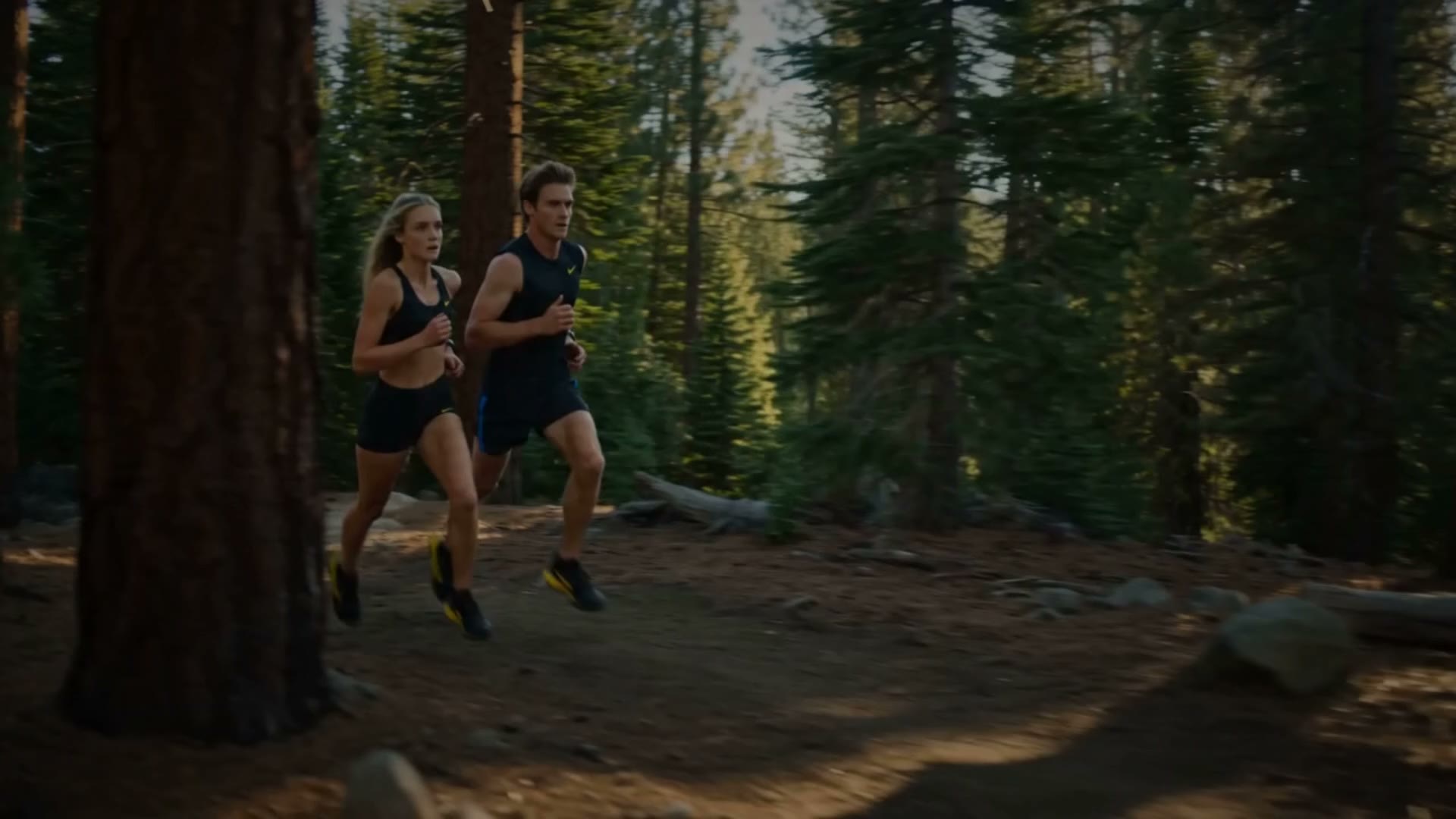
A trail-run clip on the timeline
Timeline (min 1 · drag to reorder · ★ trims a video)
The Wordskicker · headline · subline · CTA
The Soundmusic · narration
The StyleUGC styles · language
Lookoverlay style · project name
The sidebar · Video
Video
Brand Video & Audio
Video Directorclick here
UGC Ad Studio
Motion Ads
Motion Graphics Studio
Video Editor Studio
What's different here
It cuts your footage
generated or uploaded — the clips already in the client's kit. Not a stock library, not a prompt box.
It cuts by what's in the frames
every clip is read scene by scene — what's in frame, what's said, where the subject sits — so the cut lands on the moment that matters.
Nothing regenerates
re-cut a window, reorder beats, swap a clip — the beats that landed stay put.

First, the footage goes on the timeline, and the director reads every clip.

Video Director understands what's in each scene, what's said, and where the type can go. Or it casts an actor and shoots the takes for you.

Step 2 · Drop the footage

Drop your clips and shots onto the timeline — each one is understood on the way in

Click Add a shot, or drop an image or video file. Pull from the client's kit or upload from the desk. Each clip is read as it lands: what happens in each scene and when, what's said, where the subject sits and where type can go. That reading is what the director cuts from. Or, if you have no footage yet, open The Style, pick a UGC style — Street Interview, Unboxing, Testimonial, Try-On, Walking & Talking — and cast an actor: a take reel lands on the timeline and in the kit, already read, ready to cut.

The Footage — your timeline
trail-run.mp4 on the timeline
Video1
trail-run.mp4
shoe-callout.webp on the timeline
Image2
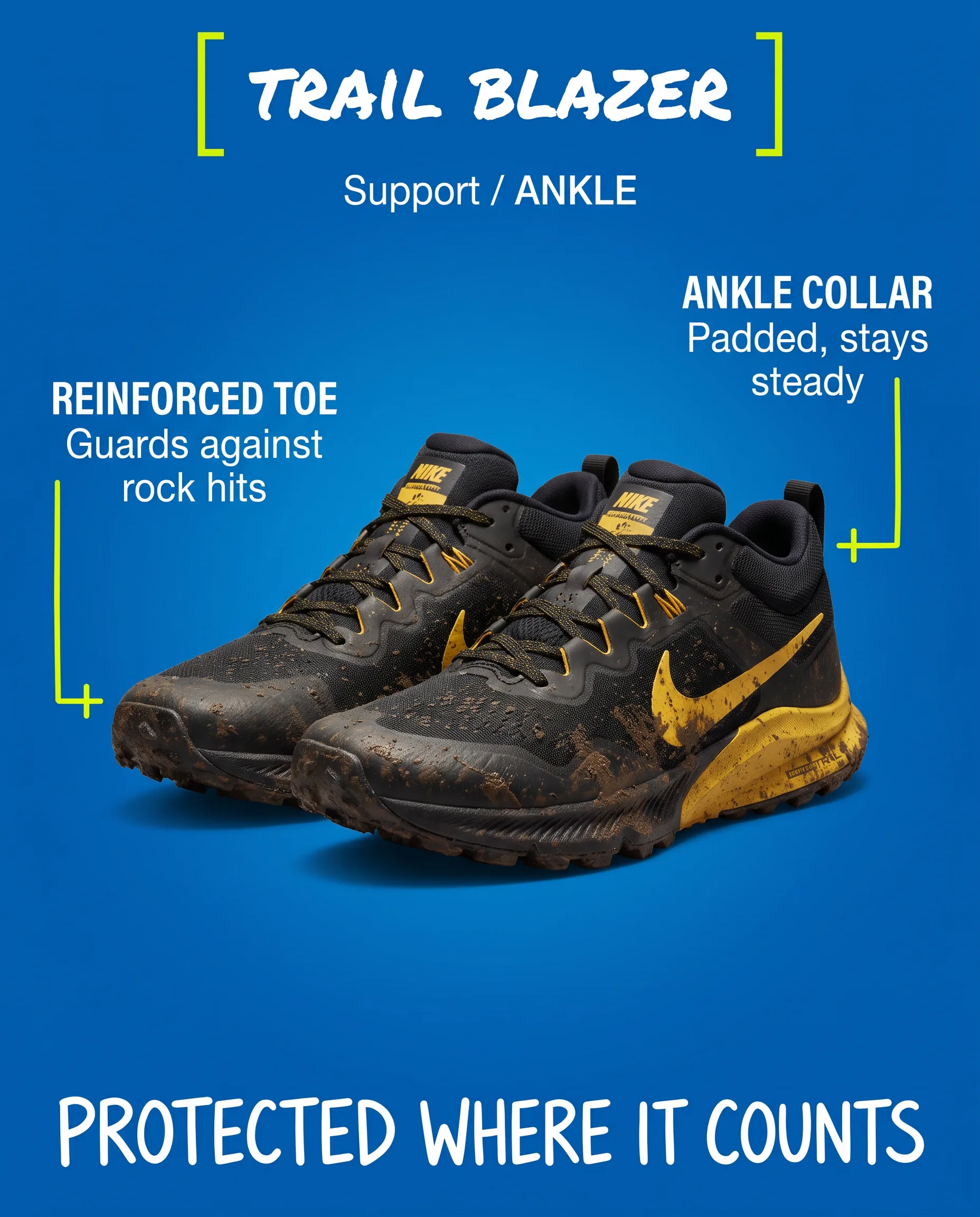
shoe-callout.webp
defy-the-dirt.jpg on the timeline
Image3
defy-the-dirt.jpg
Add a shot —
click, or drop
trail-run.mp4 · what the director read
Scenes0:00–0:04 two runners enter frame, forest trail · 0:04–0:09 tracking shot, mid-stride · 0:09–0:14 close on the shoe, dust
What's saidno dialogue · natural sound, footfalls, wind
Safe zonessubject centre-left in scenes 1–2; top third clear for type
No footage yet? The Style · cast an actor
Street InterviewUnboxingTestimonialTry-OnTutorialPodcastWalking & TalkingMirror SelfieProblem → FixShow It Off
Language: English
Pick a style and the director writes a call sheet, an actor performs several takes inside one continuous shot — same face, same light, same room — and the reel lands on the timeline and in the kit, already read. “Your actor reel is saved to the kit and on the timeline — ready to cut.”
Generated takes carry no music and no baked-in text, by design — those are layers the director adds after, so every window stays cuttable.

You trim each clip to the moment that matters.

The trim is the edit. One clip can give you three moments, and nothing regenerates when you change your mind.

Step 3 · Trim to the moment

Click the star on a clip and trim it to the moment that matters — the trim is the edit

You don't cut the clip; you pick the slice of it to show. Open the trim and window the clip to the two seconds that matter. Want two moments from the same clip? Drop it onto the timeline twice and trim each differently. Drag the slots to reorder. Nothing regenerates when you trim, so the beat that landed stays exactly as it was.

Trim · pick the slice(s) of the clip to show
one clip · three moments
The clip being trimmed
0:02
0:09
0:13
0:000:15
BEAT 1 · 0:02
the grip
same clip, its own window
BEAT 2 · 0:09
the summit
same clip, its own window
BEAT 3 · 0:13
the logo
same clip, its own window
Why this is the whole idea
Every other AI video is a monolith — one bad beat and you regenerate the lot, and get a different actor back. Here a clip is coverage: keep the beat that landed, window the rest, swap only what failed. It's the most basic move in a real edit suite, and it works on footage you already have.
Where the footage has dialogue, the words are timed too — a cut never clips a word.

You set the words and the sound, or you leave them to the director.

Kicker, headline, subline, CTA into the safe zones. A music bed to your direction, a narrator timed to the frames.

Step 4 · The words and the sound

Set the words and the sound, or leave them blank — the director writes and scores from the brand

The Words has four lines: kicker, headline, subline, call to action. Fill any you care about and leave the rest blank — the director writes them from the client's brand and places them in each shot's safe zone, off the subject, in the kit's fonts and colours. The Sound is direction, not scripts: describe the music feel and the bed composes to match, or turn the bed off and let the footage carry it. Add a narration direction and the house narrator reads lines timed to the frames, with the music ducking under her.

The Words · leave anything blank and the director writes it
Kicker
NEW FOR FALL
Headline
the director writes this
Subline
Built for the second pair
Call to action
the director writes this
Where the type lands · the safe zone
A frame with the type placed in its safe zone
NEW FOR FALL
Protected where it counts.
Built for the second pair
Shop trail
Top third, off the runners — the zone the analysis found clear. The headline and the button were the director's; the kicker and subline were yours. Kit fonts, kit colours, kit logo.
The Sound · direction, not scripts
Music bed is ON — click to turn it off
driving, percussive, breath and footfalls under it
Narration direction (adds a narrator)
hype the grip on the rock, close on find your pair
Voice: Jessica (warm, bright) — the house narrator.
music ducks under the voice

Then you tell it what the ad is for, pick the aspect, and create.

The cut plays in the preview right away, scrubbable and numbered, without rendering a thing.

Step 5 · Create the cut

One line of direction, the aspect, Create Video Cut — and the cut plays in the preview

Say what the ad is for in the line at the top, pick the aspect, name the project under Look, and click Create Video Cut. The director cuts the windows you set (or picks the moments itself from what it read), writes the missing lines, places the type, scores the bed, spots the narrator, and the cut plays right there — scrubbable, numbered, without rendering anything. What you're watching is a real finished director cut from uploaded clips.

A punchy fall spot for the trail line — hard cuts on the beat, the grip on the rock, end on the shoe.
Story 9:16 ▾Square 1:1 · Portrait 4:5 · Story 9:16 · Landscape 16:9· Project: Fall trail pushCreate Video Cut
Your Video Cut — live preview
#1staged · press play
A real director cut — uploaded clips, analyzed and spliced, the music and the motion graphic made with it. Scrub it, play it, compare it to the next take.
What the director did, in order
Cut the windows
yours as set; the rest from what it read
Wrote the missing lines
headline and CTA, from the kit's voice
Placed the type
in each shot's safe zone, kit fonts and colours
Scored the bed
to your direction, ducked under the voice
Spotted the narrator
lines timed to land on the frames

You watch it, and you say what to change.

Each note under the preview becomes a new numbered take, instantly. Nothing you liked gets overwritten.

Step 6 · Iterate by talking

Say what to change under the preview, and the cut changes — each turn a new numbered take, nothing rendered

Under the preview is the Iterate bar: change anything, by talking. Re-cut a window, hold the opener longer, drop a shot, bring the logo forward, warm up the music, ask for a square version. Each turn lands as a new numbered take beside the last, so nothing you liked is overwritten and you can flip between them. None of it regenerates footage, so it's instant. You're directing an editor, not re-rolling a generator.

Iterate by talking— change anything, no re-render
Re-cut the second clip tighter and start right on the grip.window 2 re-timed · take #2
Hold the opener a beat longer before the first cut.beat 1 extended · take #3
Drop the third shot and bring the logo forward.beat 3 removed, logo at 0:09 · take #4
Warmer music, and a 1:1 version of this cut.bed regenerated · a square take #5
Tell the director what to change…Iterate
Variants · every take, kept
#1#2#3#4#5
Take 4, story
#4 · 9:16
Take 5, square
#5 · 1:1
Take 3, portrait
#3 · 4:5
Same footage, new format, text and CTA swapped — a minute, not a re-edit. Flip between takes; pick the keeper.

When the take is right, you render it, and the project is on Brand Videos.

An MP4 with the soundtrack baked in, reopenable on the timeline, or hand it to Claude to keep going.

Step 7 · Render and keep

Render the keeper — an MP4 with the soundtrack baked in — and it's a project on Brand Videos

When a take is right, render it. Rendering is your click, never automatic, and the file lands in a couple of minutes: an MP4 with the music and the narration baked in, and a looping GIF beside it. The cut is already a project on the client's Brand Videos page — reopen it and every clip, image and trim loads back onto the timeline. Or hand the project to Claude and keep iterating in conversation.

Render take #4
Rendering…a couple of minutes
fall-trail-push-4.mp4
soundtrack baked in
fall-trail-push-4.gif
looping, for the thread
Finished renders re-download any time. Generating new footage is the only step that costs, and it always asks first.
Brand Videos · the project
The project card on Brand Videos
Fall trail pushVideo Director
5 takes · #4 rendered · 3 clips on the timeline
Open in the StudioLoad take #4's footage + trimsKeep iterating with Claude
Reopen anywhere
every clip, image and trim loads back onto the timeline
Any aspect, in minutes
re-cut the same footage to a new format and swap the text and CTA
Hand it to Claude
the project id opens the same cut in conversation — keep iterating there

Or you say the whole thing to Claude, and it directs the edit.

The same cut, re-cut and rendered in conversation, with the playbooks named for the cut you want.

Or · Say it to Claude

Claude is the same director in conversation — it cuts, re-cuts, scores and renders on your word

Everything above can be said instead of clicked. Claude finds the clips in the client's kit, reads what's in them, cuts the windows, writes and places the type, scores and narrates, and hands you a live preview. You react in plain English — re-cut, hold, drop, bring forward — and it renders only when you say render. The playbooks are named for the cut you want.

“Cut me a 9:16 ad from the trail-run clips in the kit — punchy, hard cuts on the beat, end on the shoe. Then a narrator that hypes the grip, and render #2 when I say.”

cuts it
the clips, found and read → the windows, cut → the type, placed → the bed and the narrator → a live preview → your notes → render, on your word
Video director recut
re-cut footage you already have into a new spot
Video director short hook
the first three seconds, cut to stop the thumb
Video director sizzle
the fast montage from the whole reel
Video director repurpose
one cut, every aspect and placement
Video director talking cut
cut on the words — the dialogue, timed
Video director product hero
the product-first cut with the facts on screen
Video director remix
same footage, a new angle and a new bed
Video director fresh shoot
no footage yet — cast an actor, shoot the takes, then cut
Good to know
  • Bring your footage. Video Director cuts clips you have, generated or uploaded. Composing an ad from product stills is Motion Ad Studio's job; the two cross-link.
  • Preview and iteration are instant, and rendering lands in about two to three minutes. Generating new footage is the step that costs, and you always see that before it fires.
  • Rendering is your click, never automatic. A render mints a real deliverable, so the studio waits for you to ask.
  • Music is optional here. Your footage can carry the impact on its own; toggle the bed on or off and regenerate it from your direction any time.
  • Generated takes carry no music and no baked-in text, on purpose. Both are layers the director adds after, so every window stays cuttable and restyleable.
The walk loops — every clip in the kit is coverage now. The next spot starts from footage you already have, cut a new way.
Open Video Director

Pick the client's kit. Drop the footage. Say what the ad is for. Watch the cut, then change it by talking.