Animated titles, badges and lower thirds from one sentence.
Say what you need, a sale badge, a lower third, an end card, and six takes animate live in the client's colors and fonts. Change them by talking, render the keeper as a transparent clip for any editor, or save it to the kit.
From one sentence to a transparent graphic in the client's brand
Here's the walk, in the order you'll do it.
1. Open Motion Graphics Studio
sidebar → Video → Motion Graphics Studio
2. Say what you're making
a chip and a sentence; an example image if you have one
3. The spread
six numbered takes, animating live, free to compare
4. Iterate by talking
click a number, say the change; new numbers append
5. Render the keeper
a transparent clip, WebM and ProRes
6. Save to the kit and use it
a searchable brand asset; drops onto any video
7. Come back next week
Sessions per kit; the revision starts from the take
Your client's launch film is cut, and it needs an end card by tomorrow. Nobody on the team has the afternoon for it.
Here's where to make one.
Step 1 · Open Motion Graphics Studio
It's in the sidebar, under Video
Pick the client you're working on. Then open Video in the left sidebar and click Motion Graphics Studio. Every graphic it makes uses that client's colours and fonts. It opens with one line to describe the graphic and a Create button.
1Pick the client's brand kit
on the dashboard — the studio is kit-scoped
2Sidebar → Video
the Video section: Brand Video & Audio, then the studios
3Motion Graphics Studio
fourth studio in the list — or the hub card Create · Motion Graphics Studio
Motion Graphics StudioSaveSessions
Describe the motion graphic you need — a CTA, a lower-third, a stat count-up, a kinetic headline…
Upload Example To Recreate Preview is free — render only the keeper. Create 6 takes
Your spread appears here
Six numbered takes, animating live — free to preview, scrub, and compare. Render only the keepers; download for any editor or save to the brand kit.
The sidebar · Video
Video
Brand Video & Audio
Video Director
UGC Ad Studio
Motion Ads
Motion Graphics Studioclick here
Video Editor Studio
What's different here
Graphics, not ads
the pieces an edit needs — lower thirds, badges, end cards, stings — not a finished spot. Motion Ad Studio makes the spot.
Transparent output
every render has no background, so it sits over any footage in any editor.
Six at once
one brief, six distinct takes, previewed before anything renders.
First, you say what you're making in one sentence, and pick the kind of graphic it is.
Nine starting points under the prompt. The kit's colors, fonts and motion character are already bound.
Step 2 · Say what you're making
Pick a starting point, write one sentence, and click Create 6 takes — the kit's colors, fonts and motion character are already bound
Pick a starting point, like a lower third, a badge or an end card, or just describe the graphic in one sentence. If the client sent a reference, upload it. Click Create 6 takes.
The brief · End Card picked
End card for the trail shoe launch film — bold, the product name big, hold on the url at the end.
Upload Example To Recreate Preview is free — render only the keeper. Create 6 takes
Recreating from: client-reference.png(optional)
Bound from the kit before you type
Colors
the kit's palette — the accent lands where the eye should go
Fonts
the kit's display and body faces, set in motion
Motion character
with a brand strategy on the kit, a playful brand moves springy; a premium brand moves restrained
The example image
layout and energy captured, then rebuilt on-brand — inspired by, never copied
Nine starting points, or anything you can describe. One idea per message — six takes of that idea.
A minute or two later, six takes come back, and every one of them is moving.
Numbered, titled, playing over the transparency checkerboard. Free to scrub and compare.
Step 3 · The spread
A minute or two later, six numbered takes land — each one animating live, free to scrub and compare
A minute or two later, six takes land, numbered, each one animating over a transparency checkerboard so you can see the see-through parts. Hover to scrub. Compare them side by side.
Authoring your spread — about a minute or two, then the takes land below…six real takes · one brief
1▦
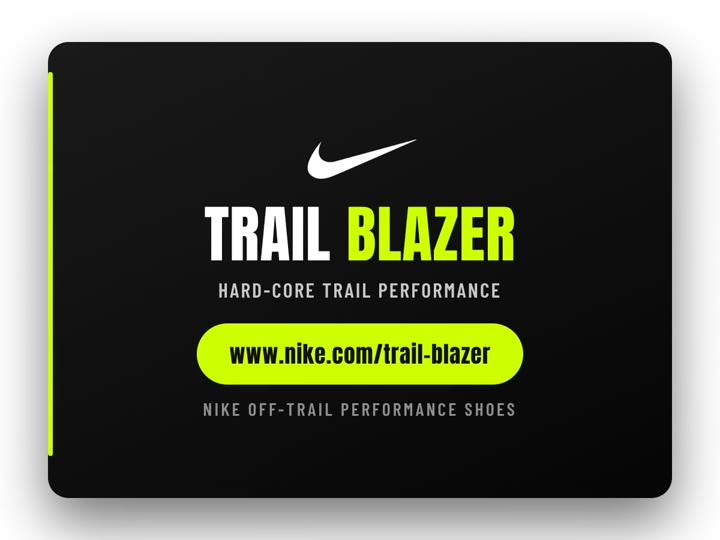
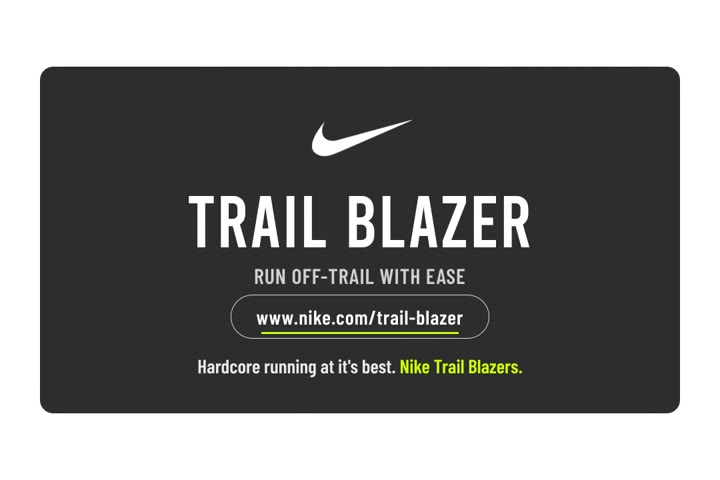
Dark plate, lime accent
mark first, the name lands, the url pill rises
Render6s · 1200×900
2▦
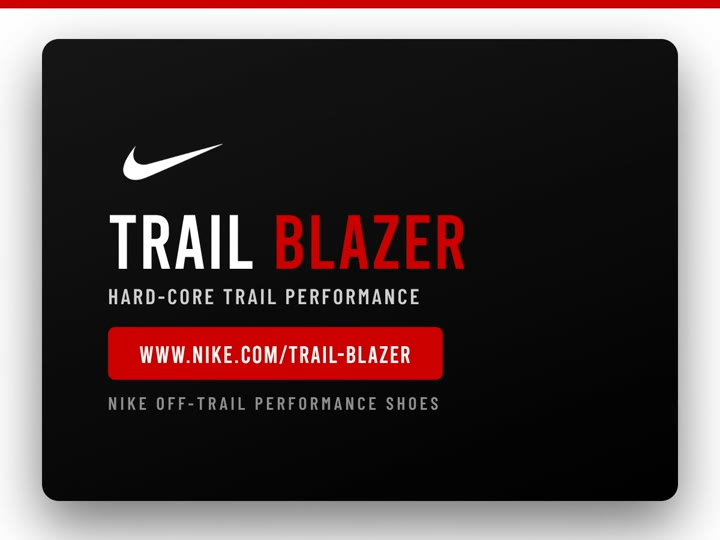
Red accent, top rule
the rule draws, the words slam in
Render6s · 1200×900
3▦
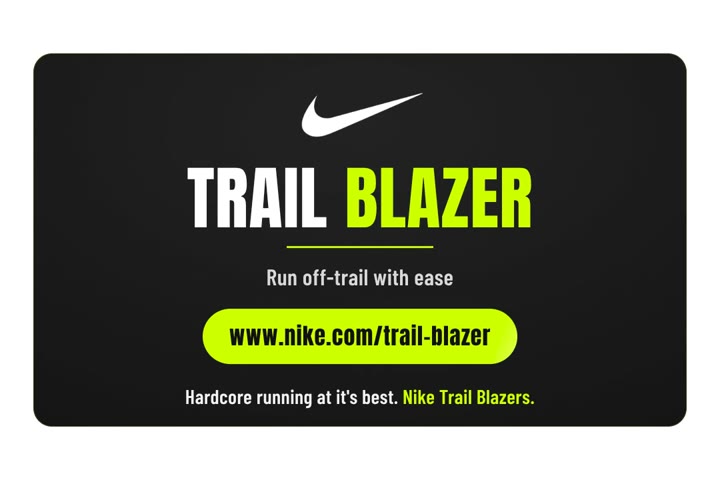
Lime underline
name then underline, quiet exit
Render6s · 1080×720
4▦
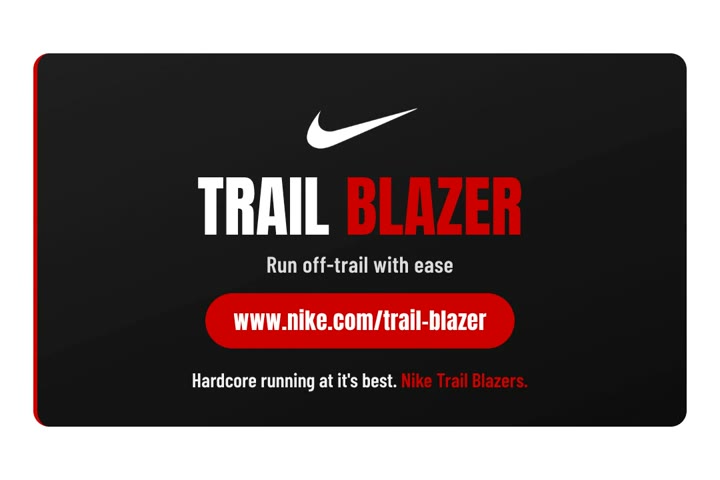
Red with the subline
two-line lockup, the line fades up last
Render6s · 1080×720
5▦
The mark alone, then the words
logo sting into the end card
Render6s · 1080×720
6▦
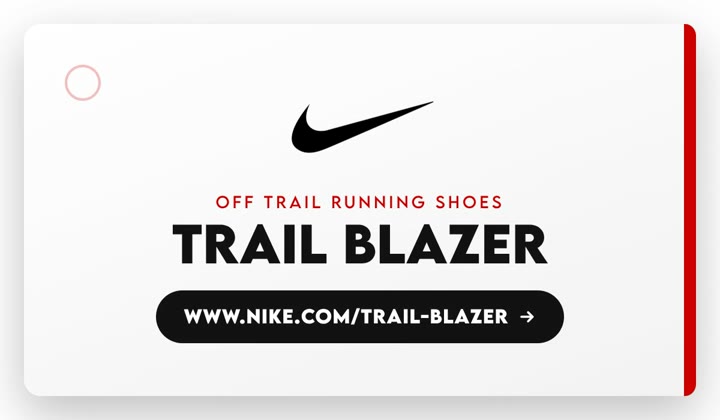
Light plate, red edge
the eyebrow, the name, the url
Render5s · 1200×700
Preview backdrop
Dark checker (default)Light checker — best for dark contentSolid whiteSolid blackPreview only — the render is always transparent.
You like number two, but not quite. You click it and say what to change.
New versions append as the next numbers. The originals stay exactly as they were.
Step 4 · Iterate by talking
Click a take's number, say the change, click Iterate — the new versions append as #7, #8, #9 beside the originals
Click the number of the take you like and say what to change: number 2, but slower, and the subline reads Built for the off-trail run. The new versions arrive as the next numbers. The originals stay exactly as they were.
#2 selected · the box changes
2▦
Red accent, top rule
Render6s · 1200×900
Evolving from #2 — describe the change.
slower entrance, and the subline reads Built for the off-trail run
or just type “number 2 but…” Iterate
Three ways to point at a take
Click its number badge
or its title — both select it as the thing you're changing
Name it in the box
#2 · number 2 · take 2 · variant 2 — all read the same
Pick more than one
select #2 and #5 and the change applies to both
The grid · #1–#6 stay, #7–#9 append
nothing overwritten
1
2
3
4
5
6
7from #2
8from #2
9from #2
Each round appends. The set is the version history: what the client approved last week is still #2, untouched, beside everything that came after.
When one is right, you render it, and you get a transparent clip for whatever editor cuts the job.
WebM for the web and the Video Editor Studio. ProRes for Premiere, After Effects and Final Cut.
Step 5 · Render the keeper
Click Render on the keeper — 30 to 60 seconds later it's a transparent clip in both formats an editor wants
Click Render on the keeper. Thirty to sixty seconds later you have a transparent clip in the two formats editors want: WebM for the web and the Video Editor Studio, ProRes for Premiere, After Effects and Final Cut. It composites over any footage.
Render #2 · the keeper
2▦
Red accent, top rule
WebMProResSave to Kit6s · 1200×900
Render → Rendering… → WebM · ProRes~30–60s
Two files, no background
WebM
Transparent WebM — web, CapCut, our editor
the light one; drops straight onto a Video Editor Studio scene
ProRes
ProRes 4444 — Premiere, After Effects, Final Cut
the professional one; every NLE reads its alpha
The same take over four placements
dark checker
light checker
solid white
solid black
If you work in Premiere, make motion graphics there too.
The same graphic, made in a panel inside Premiere Pro, lands on the timeline as a ready-made transparent clip.
If you work in Premiere
Make the same graphic inside Premiere Pro — it lands on your timeline as a ready-made clip
StyleForge has a Premiere Pro plugin. Pick the client's brand, describe the lower third or the end card in the panel, preview the takes, and click Use in Premiere: the graphic renders as a transparent ProRes clip in the kit's logo, colors and fonts and drops onto your active sequence, in place. No download, no import, no leaving the edit.
The panel, inside Premiere
“End card for the trail launch cut — bold, the name big, hold on the url.”
1
2
3
#2 · transparent ProRes .mov Use in Premiere
Your timeline · the active sequence
drops in place, above the footage
V2
SF #2 · end card
V1
A1
Pick the brand
the kit loads into the panel — logo, colors, fonts, saved graphics
Preview the takes
numbered versions, refined by talking, like the studio
Use in Premiere
transparent ProRes onto the active sequence, live progress while it renders
Premiere Pro 25.3 and up. The graphics you save to the kit here are in the panel too.See the Premiere plugin
You save it to the client's kit, and from now on anyone can find it by describing it.
A brand asset under Videos. It drops onto the client's next video in the Video Editor Studio.
Step 6 · Save to the kit and use it
Click Save to Kit and the graphic becomes a brand asset — searchable by describing it, and ready to drop onto the client's next video
Click Save to Kit and the graphic becomes one of the client's brand assets. Anyone on the team can find it later by describing it, and it drops straight onto the client's next video in the Video Editor Studio.
Save to Kit → Saved
2▦
Red accent, top rule
WebMProResSaved6s · 1200×900
Saved with what it says on screen, its type, its length and its size — so a search for the words finds it. The source stays editable: the set it came from is one click away.
Brand Assets · Videos
“our trail end card, the lime one”1 match
Trail launch end card · take 2
Motion graphic · 6s · 1200×900 · transparent
Videosmotion graphicend card
Where it goes next
Video Editor Studio
composites over the client's scenes — the clip animates itself, placed in the clear band
Any future edit
the same end card on every film for the launch; a system, not a one-off
Claude
"use our trail end card on this cut" — found by its words, placed by the editor
A week later the client wants it in the blue, and you pick up exactly where you left off.
Sessions holds every spread per kit. Open last week's, and the whole grid is back.
Step 7 · Come back next week
Every spread saves itself to the client's kit — open Sessions, pick last week's, and the whole grid is back to iterate
Every set of takes saves itself to the client. When the client calls next week with a change, open Sessions, pick last week's set, and the whole grid is back, ready for the next round.
Save · Sessions
Saved ✓Sessions
Session name
Trail launch — end cards
Every spread auto-saves — this names it on your Videos page.
+ New session
Trail launch — end cards
2026-09-05
Q2 lower thirds — founder interview
2026-08-28
Spring drop — sale badges
2026-08-14
What comes back when you open one
The whole grid
every take, in its numbers, playing
Every render state
what was rendered stays rendered — downloads still live
The thread
what was asked and what changed, so the next note has its context
The client-revision loop · a week later
same grid, any device
“Loved the end cards. Number 2 is the one — can we see it in the blue, and the subline should read Built for the off-trail run?”
1
2
3
4
5
6
Evolving from #2 —in the blue, subline: Built for the off-trail runIterate
#10–#12 append beside the six. The approved #2 stays as it was. Under the grid, Keep iterating with Claude hands the same session to a conversation.
Or you say the whole thing to Claude, and it authors the takes for you.
The same live preview, the same numbers, render and save on your word.
Or · Say it to Claude
Tell Claude the graphic and the mood — it authors the takes, shows you the live preview, and renders the number you pick
Tell Claude the graphic and the mood. It makes the takes in the client's brand, shows you the same live preview, takes your notes by number, and renders the one you pick.
“Make an end card for the trail shoe launch film — bold, the name big, hold on the url. Then render the one I pick and save it to the kit.”
authors
the kit read → up to six takes → the live preview link → your notes by number → render transparent → save to the kit, or place it on the video
Motion CTA buttons
animated calls to action, authored to the brand
Motion sale badges
the offer punches in, pulses, gets out
Motion lower thirds
name and title supers, title-safe
Motion stat count-ups
your real number, moving
Motion logo stings
the actual logo revealed with a beat
Motion type hooks
the words are the design
Motion subscribe call-outs
the subscribe moment in brand colors
Motion end cards
the outro lockup that holds to the cut
Motion countdowns
finite urgency, never loops
Design any motion graphic
the whole catalog as a menu — or let Claude propose
Brand motion starter kit
one system: lower third, CTA, badge, end card, saved to the kit
Campaign motion pack
a matched set for one campaign in one treatment
Motion refresh
reopen any past set; changes append, approved takes stay
Good to know
The first spread takes about a minute or two to author; iterations are faster. Rendering a keeper takes about 30 to 60 seconds and produces both formats.
One idea per message. Six takes of one graphic, not six different graphics at once.
Now and then a take doesn't pass the quality bar and is dropped. The studio says so plainly; ask for another or reference an existing one.
Animated charts and data graphics aren't one of the nine starting points yet. Describe one in words and the studio will still attempt it.
Transparent previews and playback are best in Chrome. Rendered files download fine everywhere.
The walk loops — next week's lower third starts from this week's session. The kit already knows the colors, the fonts and the graphics you kept.