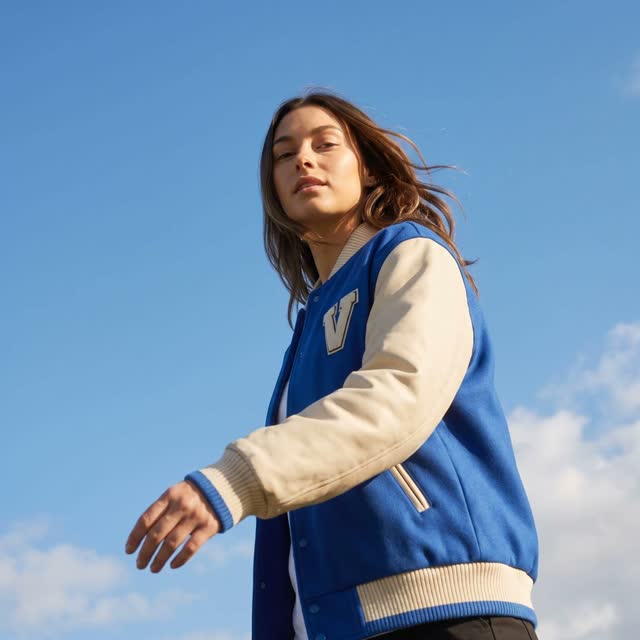
Pick one of 26 animated openers, add your shots, and the director composes the animation, writes the words, scores it and narrates it. Preview it live, change it by talking, render when it's right.
From a folder of product photos to a talking video ad
Here's the walk, in the order you'll do it.
1. Open Motion Ad Studio
sidebar → Video → Motion Ads
2. Pick the cover
26 openers; each says what shots it needs
3. Build the story
story shots, a transition, the callouts
4. The words and the sound
four lines, a bed, a narrator
5. Create
the talking ad plays in a minute or two
6. Iterate by talking
numbered variations, nothing lost
7. Render and keep
MP4, GIF, every asset in one locker
Your client has great product photos and no video, and the campaign needs a video ad.
Here's where to make one.
Step 1 · Open Motion Ad Studio
It's in the sidebar, under Video
Pick the client you're working on. Then open Video in the left sidebar and click Motion Ads. The studio builds the ad from that client's photos, colours, fonts and logo. It opens with one line to describe the ad, the aspect, and Create.
1Pick the client's brand kit
on the dashboard — the studio is kit-scoped
2Sidebar → Video
the Video section: Brand Video & Audio, then the studios
3Motion Ads
third studio in the list — or the hub card Create · Motion Ad Studio
The studio · prompt-first
Describe your ad — the director composes the animation, writes the copy, and scores it from your brand. Or just pick a cover and shots below and hit Create.
Square 1:1 ▾preview is live — render only when it's rightCreate
Fine-tuneSimpleAdvanced
The Cover — your scroll-stopper
Pick the opener. Its image slots appear below — the cover defines exactly what shots it needs.
The Story — after the coverstory shots · transition · specialty frames
The Wordskicker · headline · subline · CTA
The Soundmusic direction · narration
Lookoverlay style · project name
The sidebar · Video
Video
Brand Video & Audio
Video Director
UGC Ad Studio
Motion Adsclick here
Motion Graphics Studio
Video Editor Studio
What's different here
Built from stills
product photos in, a moving ad out. Footage is Video Director's job; the two cross-link.
The opener is proven
26 animated covers that stop the scroll, each one tested — you pick, the form asks for exactly the shots it needs.
It talks
a music bed to your direction and a narrator whose lines land on the frames they're about, ducked like a studio mix.
First, you pick how the ad opens, and the studio tells you which shots it needs.
Twenty-six proven openers, each with a real example. Pick one and its named slots appear.
Step 2 · Pick the cover
Pick the opener from 26 proven scroll-stoppers — and its image slots appear, named, so you drop in exactly the right shots
The Cover is the first two seconds, the part that stops the thumb. Pick one of 26 animated openers, each with a real example you can play. Its image slots appear under it, named, so you drop in exactly the right shots.
The Cover gallery · six of the 26, playing for real
each tile is the actual opener
5 shots
Wink-Out
accelerating iris reveal
8 shots
Cascade
bento grid, the whole collection
2 shots
Grid-Flip
tiles flip A to B
2 shots
Fold
gate-fold doors, 3D
2 shots
Split Horizontal
doors part left and right
2 shots
Cutout Composite — Peek-In
a stroked cutout over a photo
Twenty more in the gallery: Rack-Focus Punch, Living Lookbook, Carousel, Cross Motion, Deck Shuffle, Coverflow, Cube Spin, Cube Tour, Pinwheel, Slat Reveal, Diagonal Wipe, Contact-Sheet Open… Every one shows how many shots it needs before you pick it.
Wink-Out picked · its slots appear
Right portrait — first
from the kit
Left portrait
from the kit
Iris 1
from the kit
Iris 2
from the kit
Iris 3
drop an image, or pick from the kit
Each shot is read as it lands — what's in it, where the subject sits — so the director can place type and callouts later without covering the product.
Then you build the story with more shots, and tag the moments that matter.
Story shots, a transition style, and feature callouts drawn onto the real product detail.
Step 3 · Build the story
Add story shots, pick how they move, and tag the moments — a feature callout that draws onto the actual jacket
Add the story shots, at least two, and pick how they move from sixteen transition styles. Then tag the moments that matter: pick a shot, write a plain note like push in on the pocket, and the studio draws the callout onto the real product.
The Story — after the cover
Story shots (min 2 · more shots = longer ad)
1
2
3
4
Add a story shot (makes the ad longer)
Transition style · the story arc
Push carouselCrossfade + Ken-BurnsFilmstrip SettleCard SetDetail PushFeature Push+10 more
Specialty frames (optional — tag moments onto the story)
Feature callout · Applies to: Story shot 3
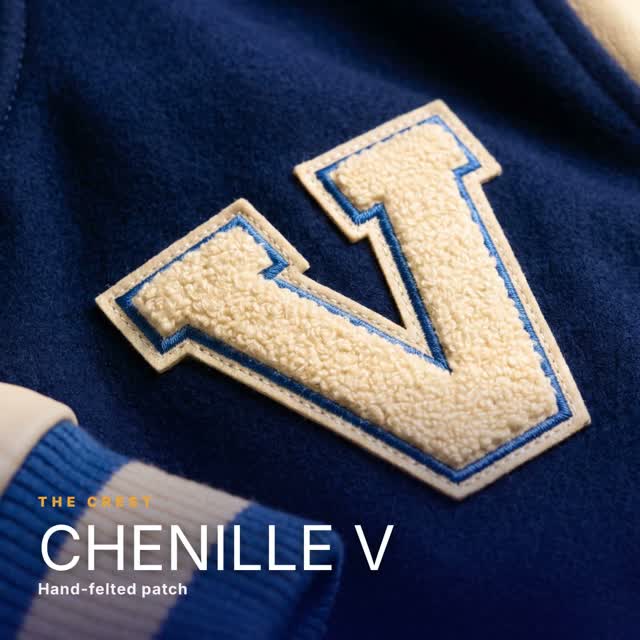
“push in on the letter patch — hand-felted, call out the chenille”
The specialty frames
Feature callout
animated rings and labels drawn onto the real product detail — you say which shot and which detail
Detail zoom
Ken-Burns into a detail, then out
Spotlight circle
a ring, dim outside, a white label
Stat counter
a metric counts up over the product
Before / after wipe
a traveling seam between two shots
Chat proof
social-proof bubbles, typing dots
The callout, drawn onto the real photo
A frame from a rendered ad. The label is the director's, drawn onto the client's own photo of the patch — the ring animates in, the label follows, the shot pushes in.
You write the lines you care about, and direct the music and the narrator in plain words.
Leave anything blank and the director writes it. The narrator's lines land on the frames they're about.
Step 4 · The words and the sound
Write the four lines or leave them blank, then direct the music and the narrator in plain words
Four fields: kicker, headline, subline, call to action. Fill what you care about and leave the rest blank; the director writes it from the client's brand and sets it in their fonts. For the sound, describe the music feel and the narrator's tone in plain words. The narration lands on the frames it's about.
The Words · leave anything blank and the director writes it
Solid PillAccent PillUnderline LinkBracketGhost + ArrowSweep-Fill PillTab Bar
The director picks the treatment that fits the cover; ask for one by name any time.
Type in motion · a headline treatment
NEW DROP
THEVARSITYBOMBER
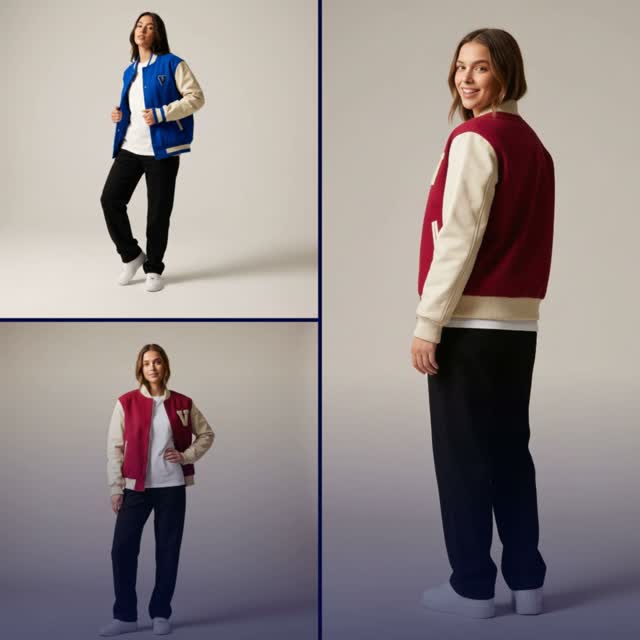
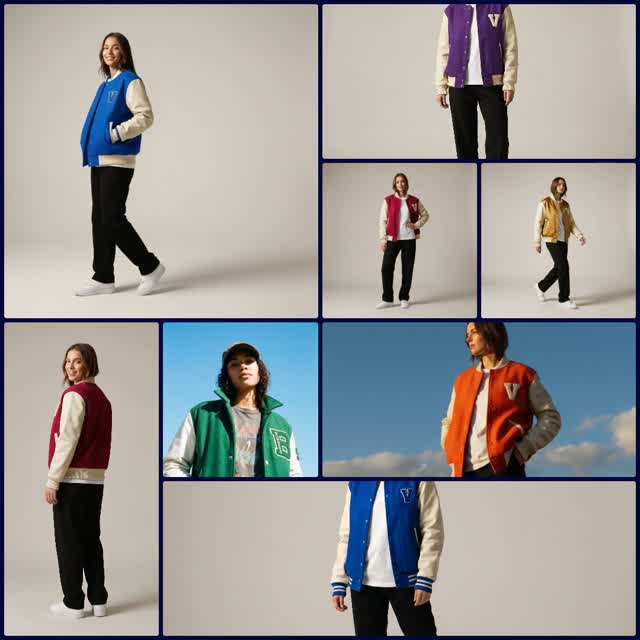
Crimson & Cobalt colorways
Shop the collection
The headline field was left blank, so this line is the director's. Word-Slam sets it a word at a time in the kit's type; the pill is the Solid Pill call to action.
The Sound · direction, not scripts
Music direction
confident varsity hip-hop with a bold hook, building energy
Narration direction (adds a narrator)
hype the crest and the leather sleeves, close on find-your-fit
Voice: Jessica (warm, bright) — the house narrator.
music ducks under the voice
Where the lines land
Coverthe opening line, as the iris reveals
Story shot 3the patch line, as the callout draws
Closethe call to action, on the CTA frame
Regenerate the bed from the direction any time; the narration is rewritten and re-timed with it.
Then you name it, pick the aspect, and create.
A minute or two later, the finished talking ad plays in the preview.
Step 5 · Create
Name it, pick the aspect, click Create — and a minute or two later the talking ad is playing in the preview
Say what the ad is for, pick the aspect, name it, and click Create. A minute or two later the finished ad plays in the preview, with the motion, the callouts, the type, the music and the narration all in place.
The fall drop for the varsity jacket — premium and calm, the letter patch and the leather sleeves are the story.
Square 1:1 ▾Square 1:1 · Portrait 4:5 · Story 9:16 · Landscape 16:9· Project: Fall drop · varsityCreate
Directing… the talking ad lands in about a minute or two, with live progress.
Your Motion Ad — live preview
#1 · your talking motion ad is staged — press play
A real finished motion ad from the sample kit. Scrub it, play it, compare it to the next variation.
What the director did, in order
Composed the opener
your shots into the cover's slots, the cover's own motion
Played the story
the arc you picked, every shot a beat — the ad runs past ten seconds
Drew the callouts
rings and labels onto the real detail in the photo you tagged
Set the words
the missing lines written from the kit; the treatment matched to the cover
Composed the bed
to your direction, then ducked it under the voice
Wrote and timed the narration
each line lands on the frame it's about
You watch it, and you say what to change.
Each instruction becomes a new numbered variation, and the earlier ones stay.
Step 6 · Iterate by talking
Say what to change under the preview, and a new numbered variation appears beside the last — nothing is overwritten
Under the preview is the Iterate box. Hold the headline longer, add a callout on the patch, warm up the music. Each note becomes a new numbered version beside the last, so nothing you liked is lost.
Iterate by talking#1#2#3#4#5
“Hold the headline longer before the first crossfade.”text hold extended · variation #2
“Add a feature callout on the gold patch.”callout added, shot 3 · variation #3
“Warmer music, slower and more cinematic.”bed regenerated · variation #4
“Make #3 a 9:16 story version.”recomposed portrait · variation #5
Tell the director what to change…Iterate
What you can ask for
Motion & pacehow long text holds, crossfade speed
Which shotsswap any scene for another kit asset
Headline & offerkicker, headline, sub, CTA copy
Brand colorsrecolor the field, tray, or accent
Logo & CTAadd a watermark or a CTA button
Music & voiceswap the bed or add a voiceover
Each turn is instant and appends a variation; the ad you liked is never overwritten.
When it's right, you render it, and every asset waits in one locker.
MP4 and GIF with the full mix, every image, the music, each narration line, Download all. A project on Brand Videos.
Step 7 · Render and keep
Render the keeper — MP4 and a looping GIF with the full mix baked in — and every asset waits in the Renders tab
When a version is right, render it. You get the MP4 and a looping GIF with the full mix. The Renders tab keeps every asset, the images, the music, each narration line, with one click to download them all. The ad lives on the client's Brand Videos page.
Render variation #3
Rendering…a minute or two
fall-drop-varsity-3.mp4
the full mix baked in
fall-drop-varsity-3.gif
looping, for the thread
Re-render any time; finished files download from the page. The project is on Brand Videos — reopen the setup, open the preview, rename or delete.
Renders tab · the asset locker
Download all
Every image used
the shots, as placed
The music bed
the original track
Each narration line
playable one by one
The mix
bed and voice, ducked
The videos
MP4 and the looping GIF
Everything the ad was made from, per variation — the client's, forever reopenable.
Or you say the whole thing to Claude, and it hands you three takes.
It finds the shots, picks the cover and story, writes and narrates, and renders on your word.
Or · Say it to Claude
Tell Claude the product and the mood — it finds the shots, picks the cover and story, writes and narrates, and hands you three takes
Tell Claude the product and the mood. It finds the shots, picks the cover and the story, writes and narrates, and hands you three takes to react to. Say which one, and it renders.
“Make me a motion ad for the varsity jacket — premium and calm. Use the saved jacket shots and add a feature callout on the gold patch.”
directs
the shots, found → the cover and story, picked → the words, the bed, the narration → three takes on a live preview → your notes by number → render, on your word
Motion ad lookbook
the collection, shot after shot, on a living grid
Motion ad callouts
the product's details, ringed and labelled
Motion ad zoom
push into the detail, then out
Motion ad sale
the offer, stacked and kinetic
Motion ad minimal
one shot, one line, calm
Motion ad launch
the new drop, opener to CTA
Motion ad proof
stats and social proof over the product
Motion ad full play
cover, story, callouts, words, sound — the whole ad
Good to know
Built from stills. The studio composes from your product images. Filming with talking-head clips or footage is Video Director's job, and the two cross-link.
Ads run ten seconds minimum, because that's what the ad platforms accept. Every story shot you add makes the ad longer.
Creating a talking ad with narration takes about a minute or two, with live progress. Preview and iteration are instant.
The narrator is the house voice today, Jessica, warm and bright. A voice picker in the studio is coming; other voices can be chosen through Claude on request.
The setup autosaves as a draft while you work. Every ad is a project on Brand Videos: reopen the exact setup, open the preview, rename or delete.
The walk loops — the same shots take a different opener next week. The photos are already in the kit; the ad is a cover away.