Start a project, add an artboard for every channel, and design with the client's fonts, colours and logos a click away. A real text engine, layers, layouts, AI where it saves an hour, and an export that ships the whole set.
A real capture of the canvas: a headline reshaped along a curve with its handles, the Type on Path panel open — Angle, Circle, Arch, Rise, Flag, skew, character rotation, stroke, snap to baseline — then an arched line given a rounded text background. Silent, on a loop. Then walk through how a project happens.
The whole walk · seven stops
From a new project to an exported set, on one canvas
Here's the walk, in the order you'll do it.
1. Open Infinite Canvas
sidebar → Create → Infinite Canvas; the start page
2. Start a project, add artboards
every size the campaign needs
3. Design it
shapes, colours, images; click any element for its menu
4. Put type to work
350+ fonts, text on path, text effects
5. Layers, layouts, duplicates
the panel, the sets, the copies
6. Let the AI in
generate, enhance, adapt — where it saves an hour
7. Export the set
PNG, JPG, layered PSD, or a video
Your client needs the campaign in every size by Monday, and one designer to do it.
Infinite Canvas is in the sidebar under Create. Here's exactly where to click.
Step 1 · Open Infinite Canvas
It's in the sidebar, under Create
Open Create in the left sidebar and click Infinite Canvas. You land on a start page: your projects, a custom size canvas, your templates, and the community library. The client's brand kit is a panel on the canvas itself.
1Sidebar → Create
the Create section: Creative Studio, Sound Studio, then the canvases
2Infinite Canvas
fourth row — or the Design Canvas card on the dashboard; the start page opens
3Open A Project, or a new size
resume a project, set a custom size, or start from a template
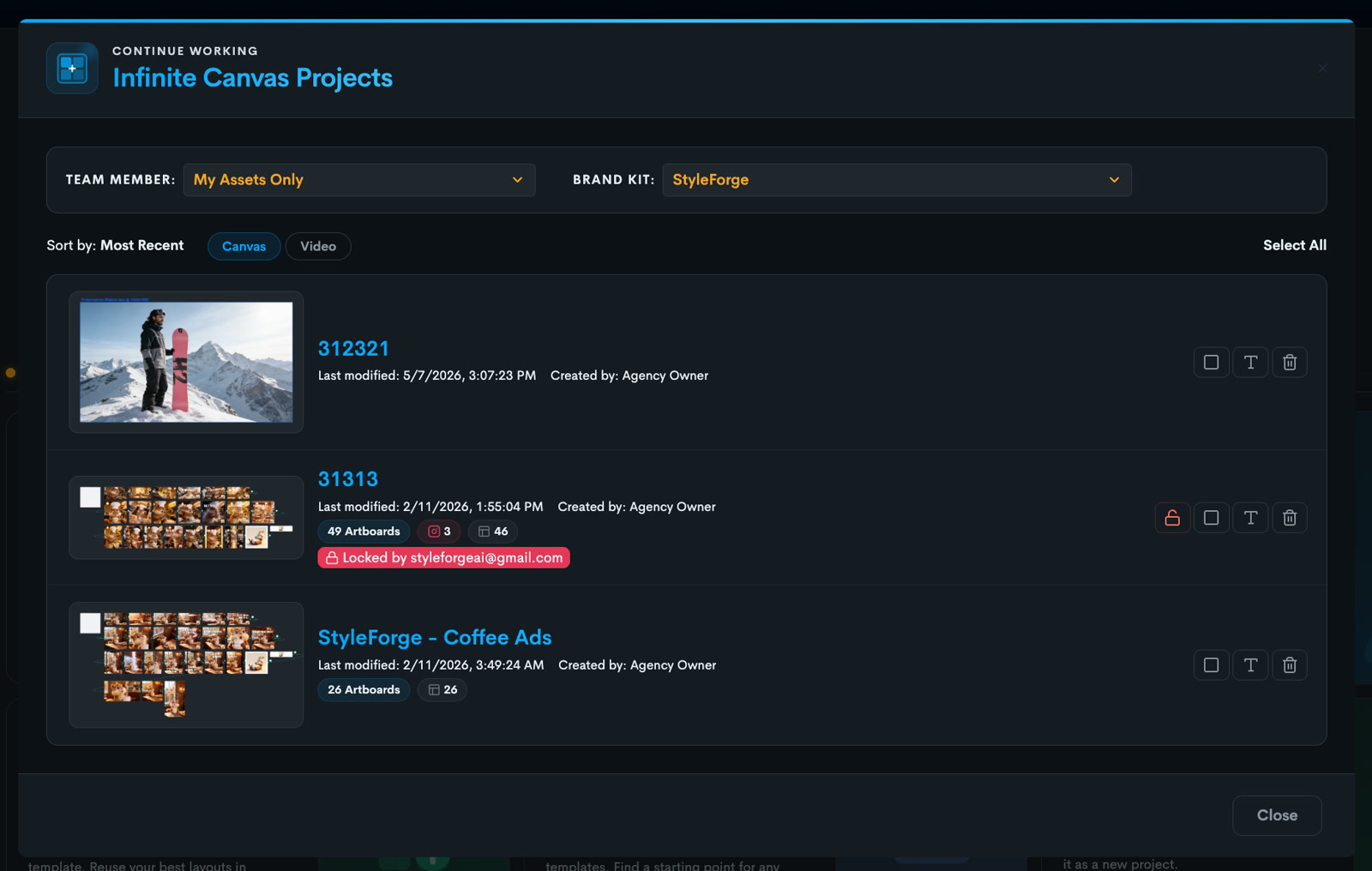
Continue Working · Infinite Canvas Projects
a real capture
Open A Project
Browse Projects → — yours and your team's
Custom Size Canvas
Set Dimensions → — any size, 360px to 4096px
My Canvas Templates
View Templates → — layouts you saved
StyleForge Canvas Library
Browse Library → — community templates
The sidebar · Create
Create
Creative Studio
Sound Studio
Workflow Canvas
Infinite Canvasclick here
Video Canvas
What's different here
Artboards, not a page
as many framed sizes as the campaign needs, all in one project, on an endless workspace.
A real design tool
a typography engine, vector shapes, layers, blend modes, masking — not a template filler.
The brand on every board
the client's fonts, colours, logos and saved assets are a panel away, shared with the team.
First, you start a project and add an artboard for every placement.
Pick the platform, heart the sizes, Add to Canvas. Duplicate a board whenever a variant is needed.
Step 2 · Start a project, add artboards
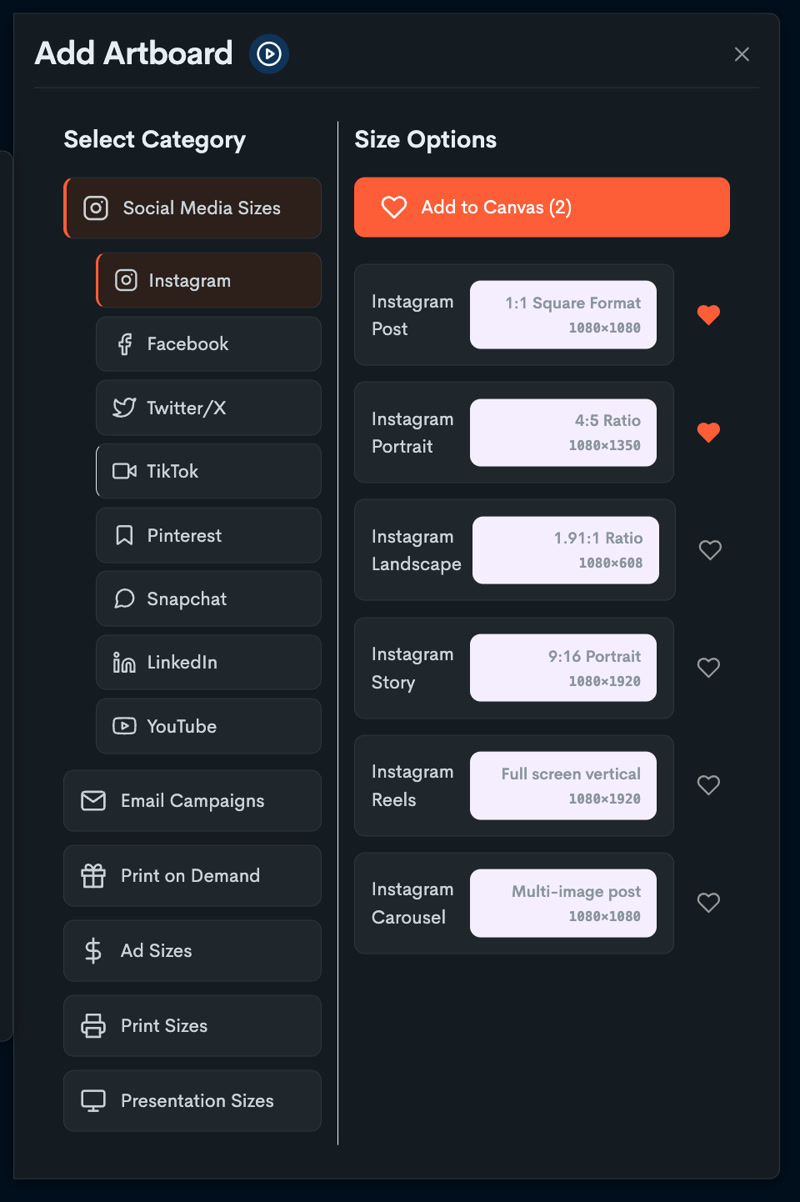
Click Add Artboard, pick the platform and the sizes, heart the ones you use every week, and Add to Canvas
Click Add Artboard, pick the platform, and every placement is listed with its size. Heart the ones you use every week and click Add to Canvas. The boards land side by side, and you can duplicate any of them.
Add Artboard · the real dialog
Add to Canvas (2)
Size Options · Instagram, as listed
Instagram Post1:1 Square Format · 1080×1080
Instagram Portrait4:5 Ratio · 1080×1350
Instagram Landscape1.91:1 Ratio · 1080×608
Instagram Story9:16 Portrait · 1080×1920
Instagram ReelsFull screen vertical · 1080×1920
Instagram CarouselMulti-image post · 1080×1080
Select Category
Social Media SizesEmail CampaignsPrint on DemandAd SizesPrint SizesPresentation Sizes
A layout is a set of artboards grouped for a purpose — a campaign, a client, an A/B round — and the Layers panel lists the project by layout first. Save your own arrangement of boards as a layout and it's there next time, under My Canvas Templates.
Duplicate an artboard
one click on the artboard toolbar — the variant keeps everything
Any size
Custom Size Canvas takes exact pixels, 360 to 4096
Hearts
the sizes you use every week float to the top
Then you design it, with the client's kit a click away on every board.
Shapes, colours, photos, type. Click any element and its whole menu is right there.
Step 3 · Design it
Add shapes, colour the artboard, drop in the photos, set the type — and click any element to get its whole menu
The left rail is the toolbox: shapes, text, icons, photos, art, and the client's brand kit one click away. Colour the board, drop in a photo, place the headline. Click any element and its whole menu appears.
The left rail · the real tools, in order
Add ArtboardPerformance Ad CampaignsBanana BoardsAdd TemplateAdd ElementsAdd TextAdd ShapesAdd IconsPhotosAdd ArtGenerate TypographyGenerate IllustrationsGenerative AIAdd Color StylesBrand KitsLayersHelp
copy and paste style, layer order, duplicate, group, convert to PNG or SVG
Brand Kits · the client on every board
Open the Brand Kits panel and the client's fonts, colours, logos and saved assets are there to click onto any artboard. Color Styles goes further: swap a colour once and it changes everywhere it's used, across every artboard in the project, or apply a whole palette in one click.
The headline wants to bend along a curve, so you put the text on a path.
Angle, Arch, Circle, Flag or Rise, still editable. Effects and generated type when the words should be art.
Step 4 · Put type to work
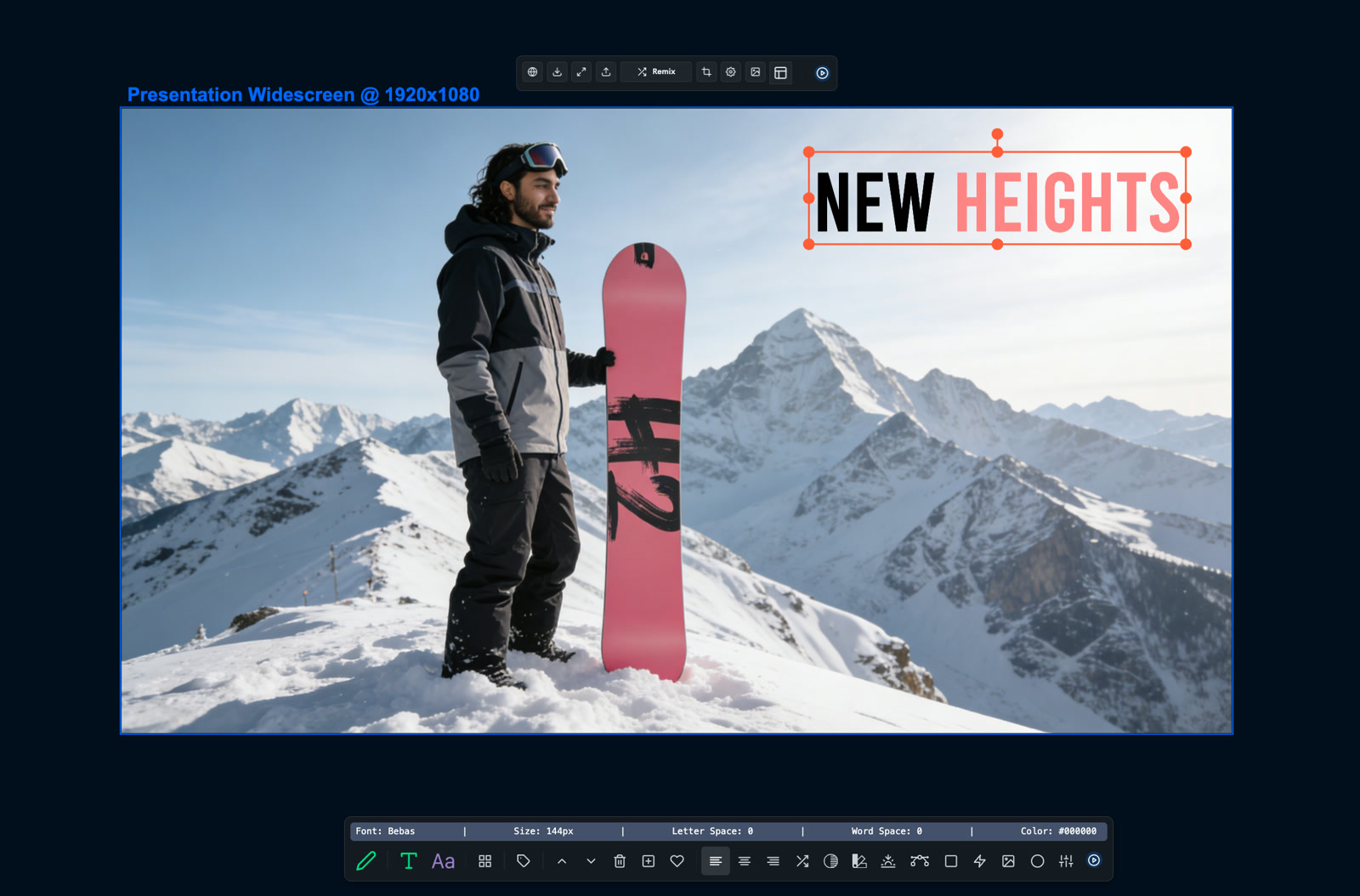
Set a line on a path, angle it, arch it, give it an effect — the text engine does what a real design tool does
Three hundred and fifty fonts, spacing, gradients, shadows and strokes. Text on path bends a line along an angle, an arch or a circle and stays editable. Eight text effects sit one click away, and Generate Typography turns the word itself into art.
Fonts, colours and angles · a real clip
350+ fonts
Text on path
AngleArchCircleFlagRise
Text effects
Long ShadowGlitchSpliceHollowEchoGlowExpandEDM
Every one of these is a setting on the element, not a baked image: change the words later and the path, the effect and the fill follow.
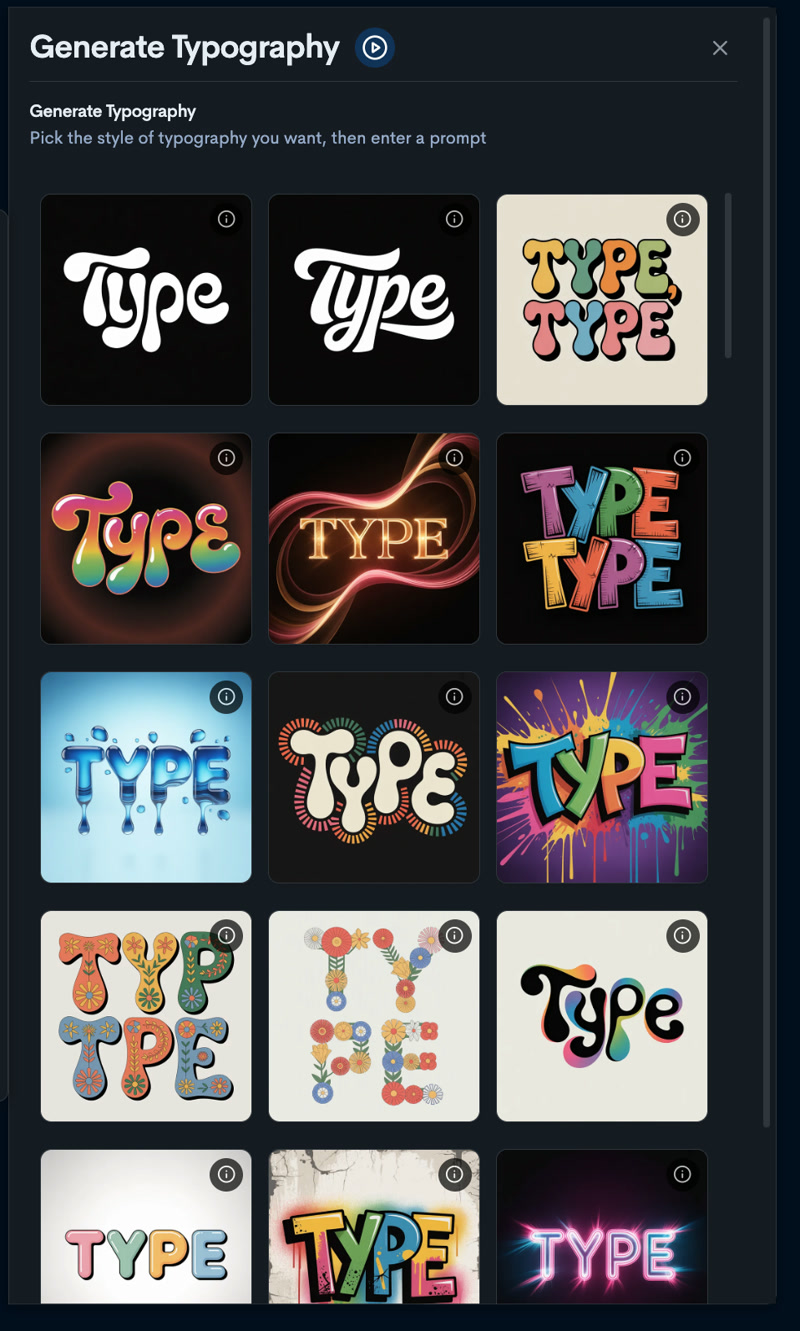
Generate Typography · the real panel
100+ styles
Pick the style of typography you want, then enter a prompt. The word comes back as an image you place like any other, and Generate Illustrations does the same for pictures, in a hundred natural-media looks.
Twelve boards in, you open Layers to keep it all straight.
Every element by layout and board. Show, hide, lock, reorder, move, rotate, duplicate, group.
Step 5 · Layers, layouts, duplicates
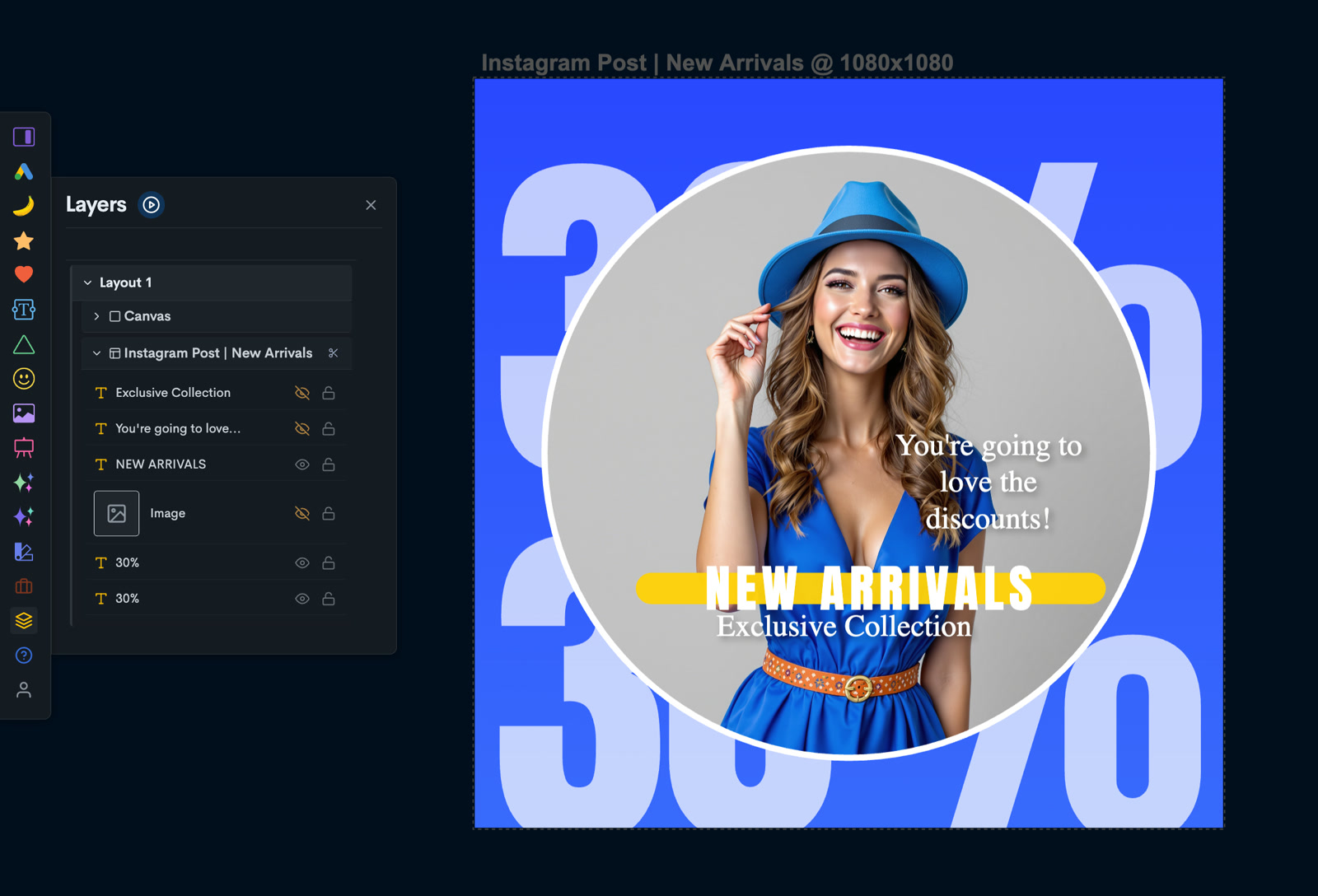
Open Layers and every element on every artboard is listed by layout and board — show, hide, lock, reorder, and duplicate what you need
Open Layers and every element on every board is listed. Show, hide, lock, reorder. Select anything and the handles do the rest: resize, rotate, duplicate, group.
The Layers panel · as it reads
Layout 1
Canvas
Instagram Post | New Arrivals
Exclusive Collection
You're going to love…
NEW ARRIVALS
Image
30%
30%
Show or hide
any element or a whole artboard
Lock
keep the approved pieces where they are
Reorder
drag to change what sits on top
Duplicate
an element, or the whole artboard for a variant
Layouts
sets of artboards for a reason — a campaign, a client, an A/B round
Group
move a lockup as one piece
Edit once, all update
Color Styles swaps a colour across every board
Move, rotate, resize · a real capture
the handles do the work
A story artboard for a cafe client, as captured: the headline placed, dragged into position, turned on its side with the rotate handle, sized back down. Every element moves the same way; group a lockup so it moves as one piece, and duplicate an artboard for the next variant.
Where the AI saves an hour, you let it in.
The picture generated in the frame, backgrounds gone in a click, upscales, and an assistant for the bigger moves.
Step 6 · Let the AI in
Generate the picture in the frame, fix a photo in one click, or hand a design to an assistant — the AI is on the canvas, not in another app
Generate the picture right in the frame you drew, from every top image generator in one panel. Remove a background in one click, expand a photo, upscale it. Or hand the whole design to an assistant for the bigger moves.
The generating tools · on the left rail
Add ArtboardPerformance Ad CampaignsBanana BoardsAdd TemplateAdd ElementsAdd TextAdd ShapesAdd IconsPhotosAdd ArtGenerate TypographyGenerate IllustrationsGenerative AIAdd Color StylesBrand KitsLayersHelp
Generate
Generative AI
every top image generator in one panel — the picture is made in the frame you drew, then edited and varied there
Generate Illustrations
a hundred natural-media looks for the pieces a layout needs
Generate Typography
a hundred styles; the word comes back as art
Fix a photo · on any selected image
Remove Background
one click
Expand Fill
outpaint the edges
Upscale
2× · 4× · 8×
Create Variation
another take of the same image
The assistants, in one line each: Magic Design Assistant turns a chat into editable layers; Magic Artboards adapts one board to every channel; the storyboard and campaign-board assistants lay out whole sets. The full list is on the capabilities page.
When the set is right, you export it, every board at once.
PNG, JPG or layered PSD at the size and DPI you set. A still can leave as a video.
Step 7 · Export the set
Export Canvas ships an artboard or the whole set — PNG, JPG or layered PSD at the size and DPI you set — and any image can leave as a video
Click Export Canvas. Pick PNG, JPG or a layered PSD, set the size and DPI, and export one board or every board at once as a zip. Any image can also leave as a short video.
Export Canvas · the dialog, as it reads
Export Canvas
FormatPNG · JPG · PSD
Size PresetInstagram Post · 1080×1080
UnitsPixels (px) · Inches (in) · Millimeters (mm)
DPI72 for screens · 300 for print
DimensionsWidth 1080 · Height 1080
this artboard · or every artboard as a .zipExport
Downloading canvas… → Export successful
Where the boards go next
Save to Album
keep a board or an image in the kit's albums — it shows in Brand Assets for the next project
Download
one board, or the whole project as a .zip
PNG / JPG
for every channel
Layered PSD
layers intact for the next designer
The whole set
every artboard, one zip
Make your art → make it a video · a real clip
Download Frame · Download Video
A still on an artboard can leave as motion: make it a video, preview it in Video Playback, download the frame or the clip. Save the finished boards to the client's kit and they're in Brand Assets for the next project.
Or you hand a hearted ad to Claude, and it rebuilds it on the canvas in the client's brand.
Real layers, two sizes, iterated in place. You open it and keep going by hand.
Or · Say it to Claude
Tell Claude the ad you hearted and the client — it rebuilds the design on a real canvas, in the client's brand, and iterates in place
Point Claude at an ad you saved in Ad Intelligence and name the client. It rebuilds the design as real layers on a canvas, in the client's brand, at more than one size. You open it and keep editing by hand.
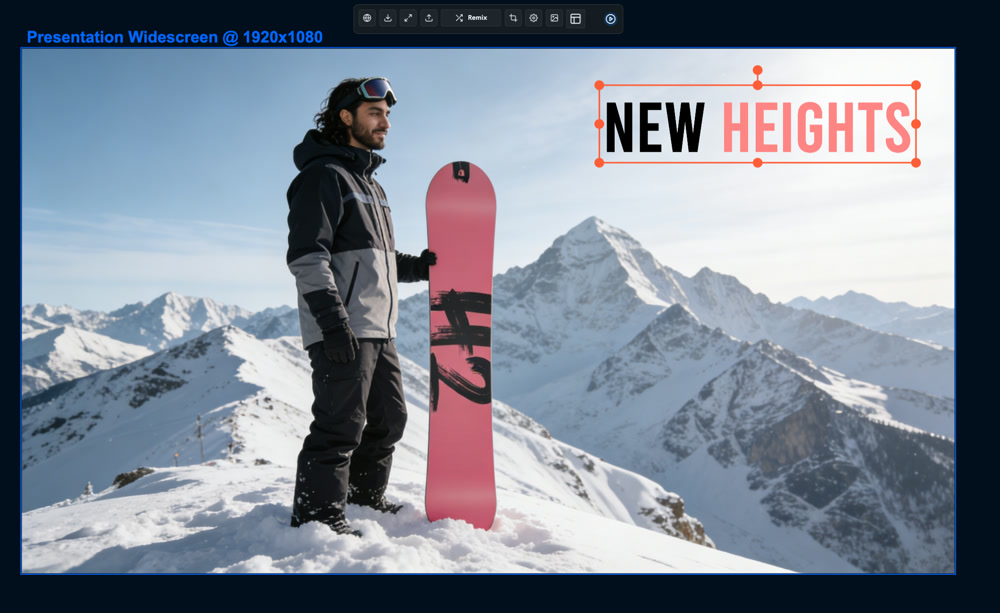
“Recreate the ad I hearted this morning for the snowboard client — a 1:1 post and a 9:16 story, in their colours and fonts.”
designs
the hearted ad read → the brand kit resolved → a canvas project built as real layers, at two sizes → iterated in place → open on the canvas
Recreate my hearted ad
the playbook: a hearted ad in, a canvas project out, in the client's brand
Real layers, not a flat image
text, image and shape layers you can keep editing on the canvas
Iterated in place
changes land on the same project — nothing approved gets overwritten
Design Canvas, the front door
pick a shape, type the brief, and the boards land on a canvas ready to open
Good to know
This walk covers the basics on purpose. The on-canvas assistants and the campaign-board tools are on the capabilities page, and each earns its own visit.
The canvas isn't scoped to one kit in the sidebar. The client's kit is chosen in the Brand Kits panel and in Open A Project, so one workspace serves every client.
Some assistants are marked beta, and two of them come with the Creator plan.
Projects save as you work and can be locked by a teammate while they're in it. Open A Project shows who holds the lock.
Exports are production files: layered PSD keeps the layers, and print sizes take inches or millimetres with a DPI.
The walk loops — next month's campaign opens this project, duplicates the boards, swaps the copy and the colour, and exports again.